


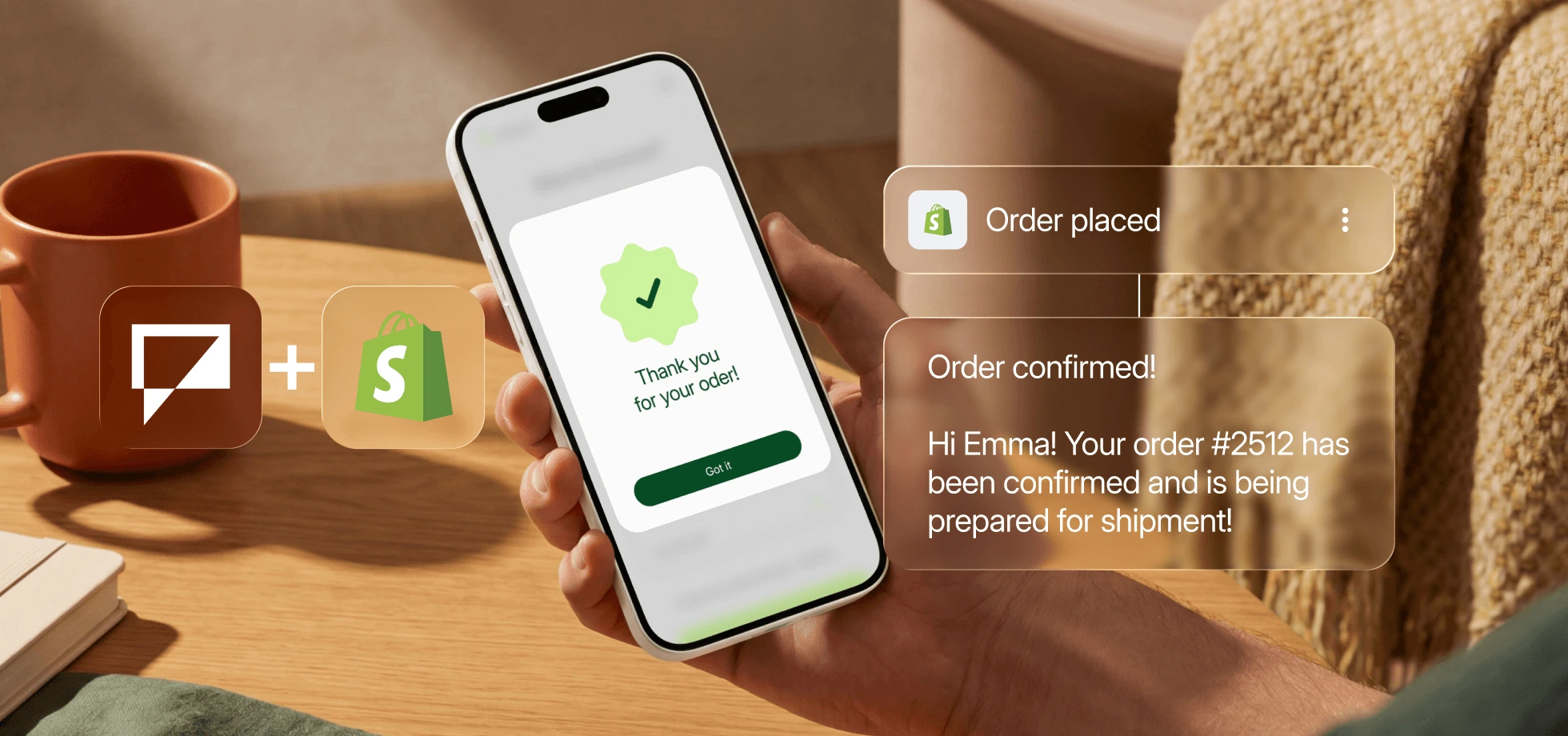
Customers rarely contact support when they’re uncertain about an order. They simply lose trust in the store.
While Shopify sends order confirmation emails, these messages are often overlooked or difficult to locate. A timely SMS confirmation, shipping update, or tracking link reaches the customer before uncertainty sets in.
SMS complements email rather than replacing it. Messages are delivered instantly, remain easy to find, and allow customers to reply directly.
Shopify does not provide native SMS automation, so most merchants integrate a third-party application. Many available tools are designed primarily for marketing campaigns.
This guide demonstrates how to configure SMS order notifications using Textmagic, a platform oriented toward operational messaging and two-way customer communication.
Shopify’s SMS limitations
(and what you need instead)
Shopify doesn’t meaningfully support SMS for order notifications. At most, it can send a basic order confirmation when no email address is provided, which rarely applies. There’s no support for shipping updates, delivery notifications, or replies.
Shopify Messaging adds broadcast campaigns, but not automation. You can’t trigger messages when an order ships or a cart is abandoned, and conversations are one-way only.
To use SMS in your post-purchase flow, you need an integration connected to your order events. Textmagic connects directly to your Shopify order events, so messages are triggered automatically with the right data:
- Send messages based on order events
- Include order details automatically, such as order number or tracking link
- Let customers reply and manage those conversations in one place
- See delivery status for every message
- Keep a full message history for each customer
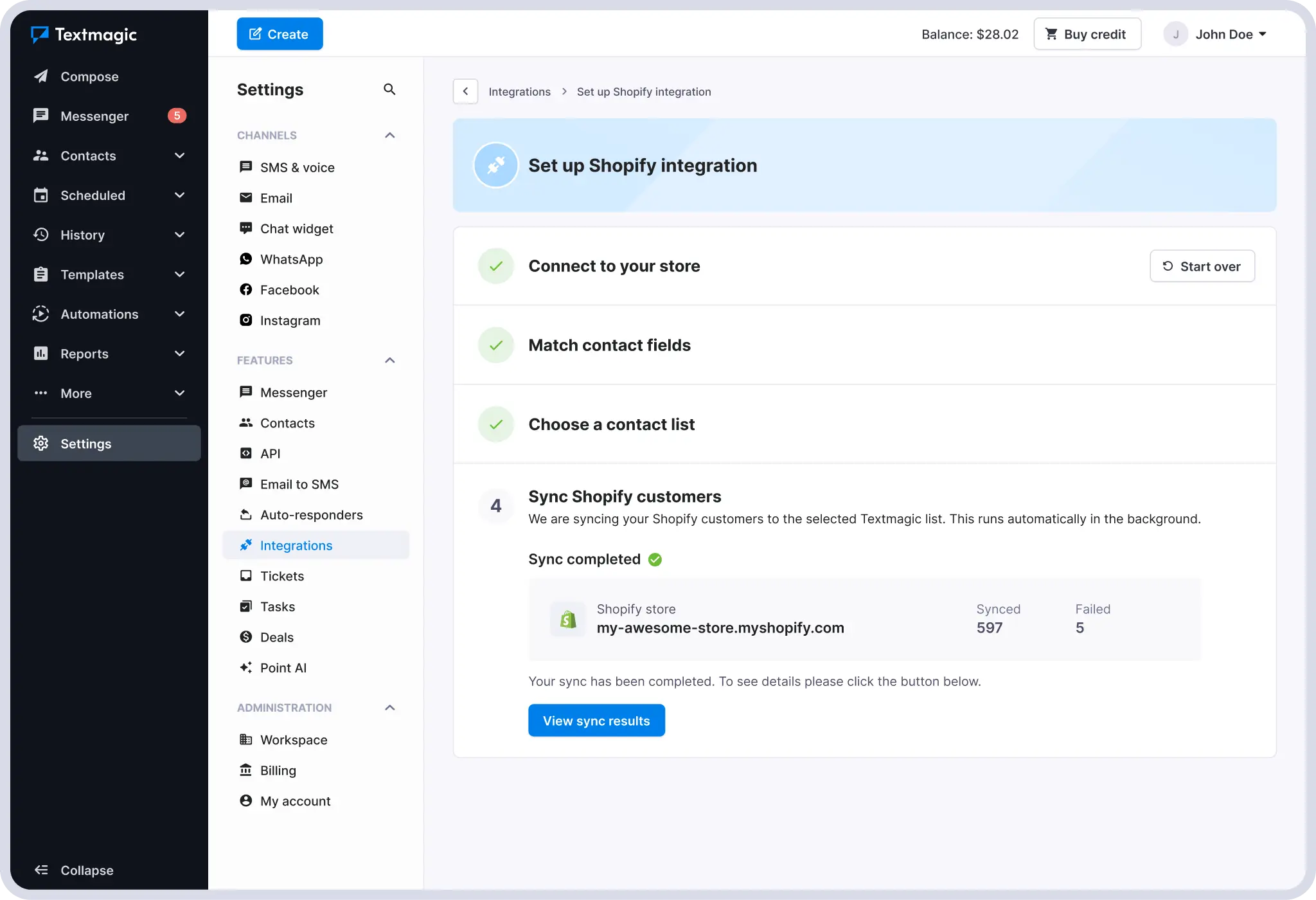
1. Connect your Shopify store to Textmagic
Go to your Textmagic account, navigate to Integrations, and select Shopify. Enter your store URL and authorize the connection.
Once connected, your Shopify customer and order data becomes available in Textmagic for automation. Order events like payment, shipping, and fulfillment can now be used as triggers. Changes sync from Shopify to Textmagic automatically, but not the other way around.
2. Choose your triggers
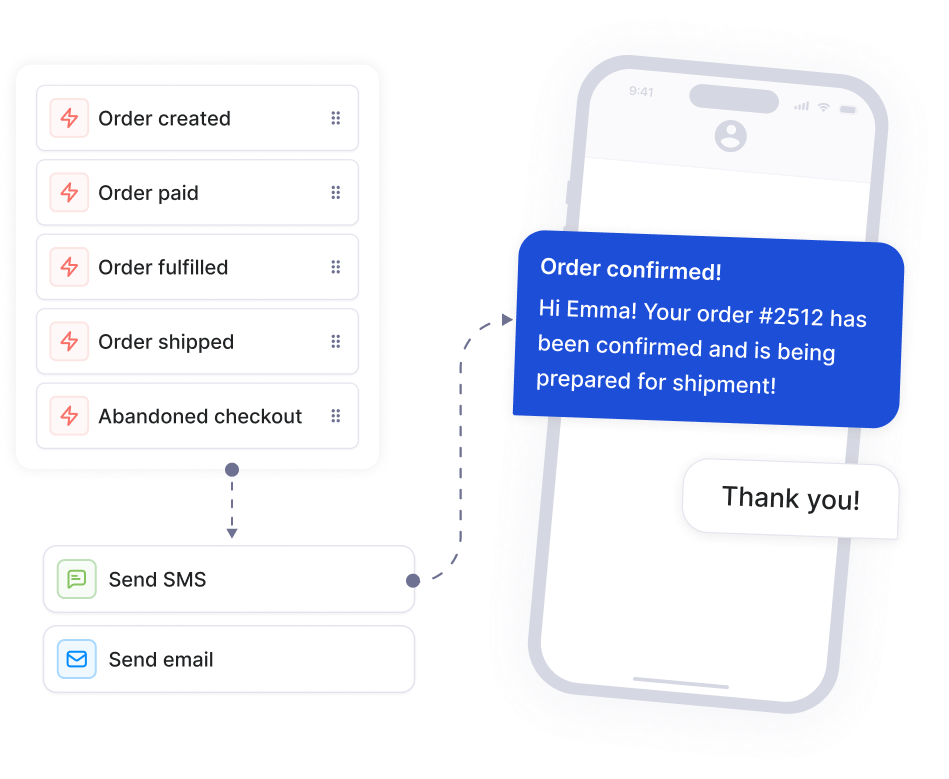
Go to Automation flows and click New flow. In the trigger panel, select Shopify. You will see five events you can choose from:
- Order created
- Order paid
- Order fulfilled
- Order shipped
- Abandoned checkout
Filter each trigger further by specific products, product categories, order value, or contact data fields to send a different message for high-value orders or target a specific product range.
For a basic setup, three triggers are enough:
- Order paid for confirmation
- Order shipped for tracking
- Order fulfilled for delivery follow-up
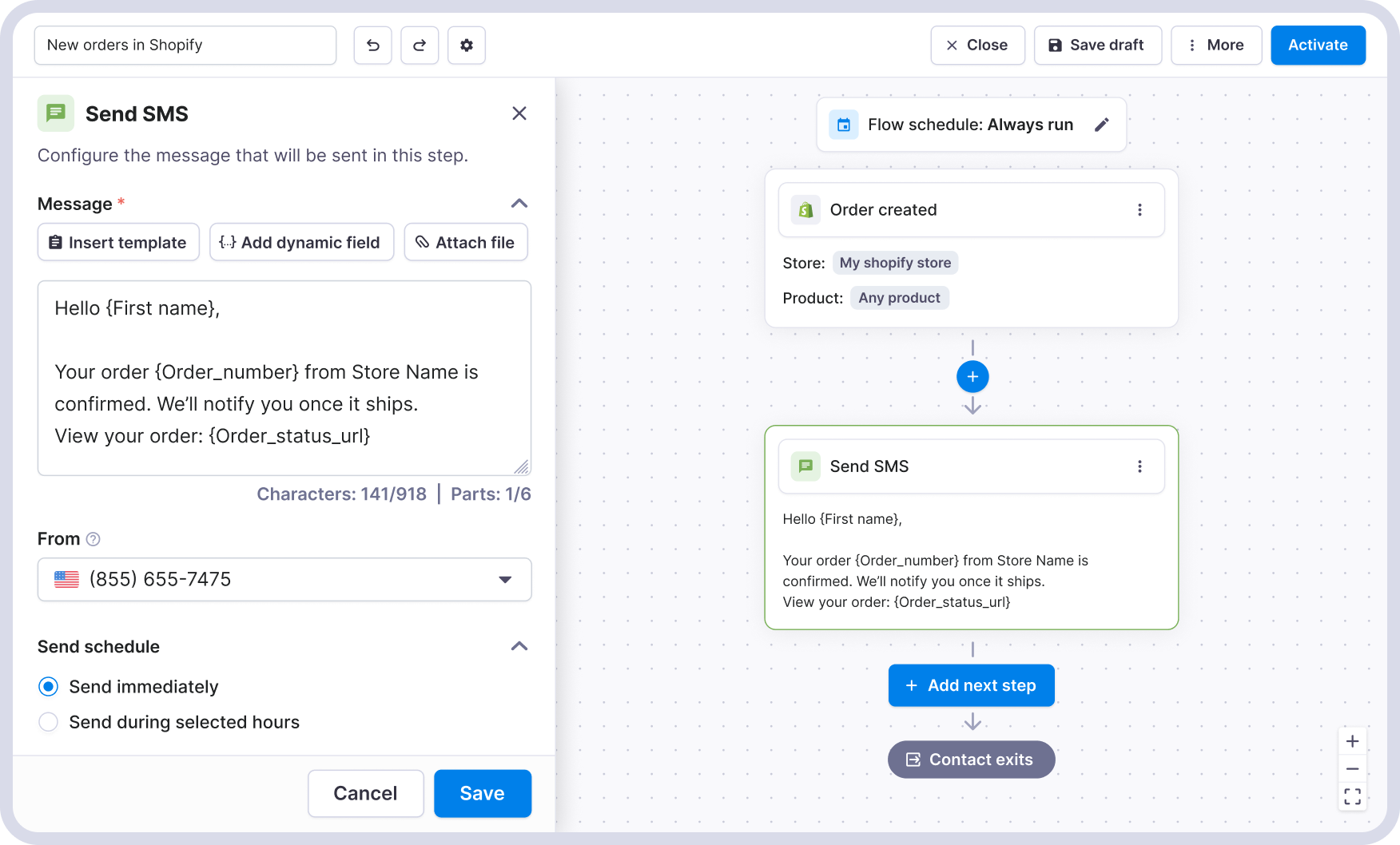
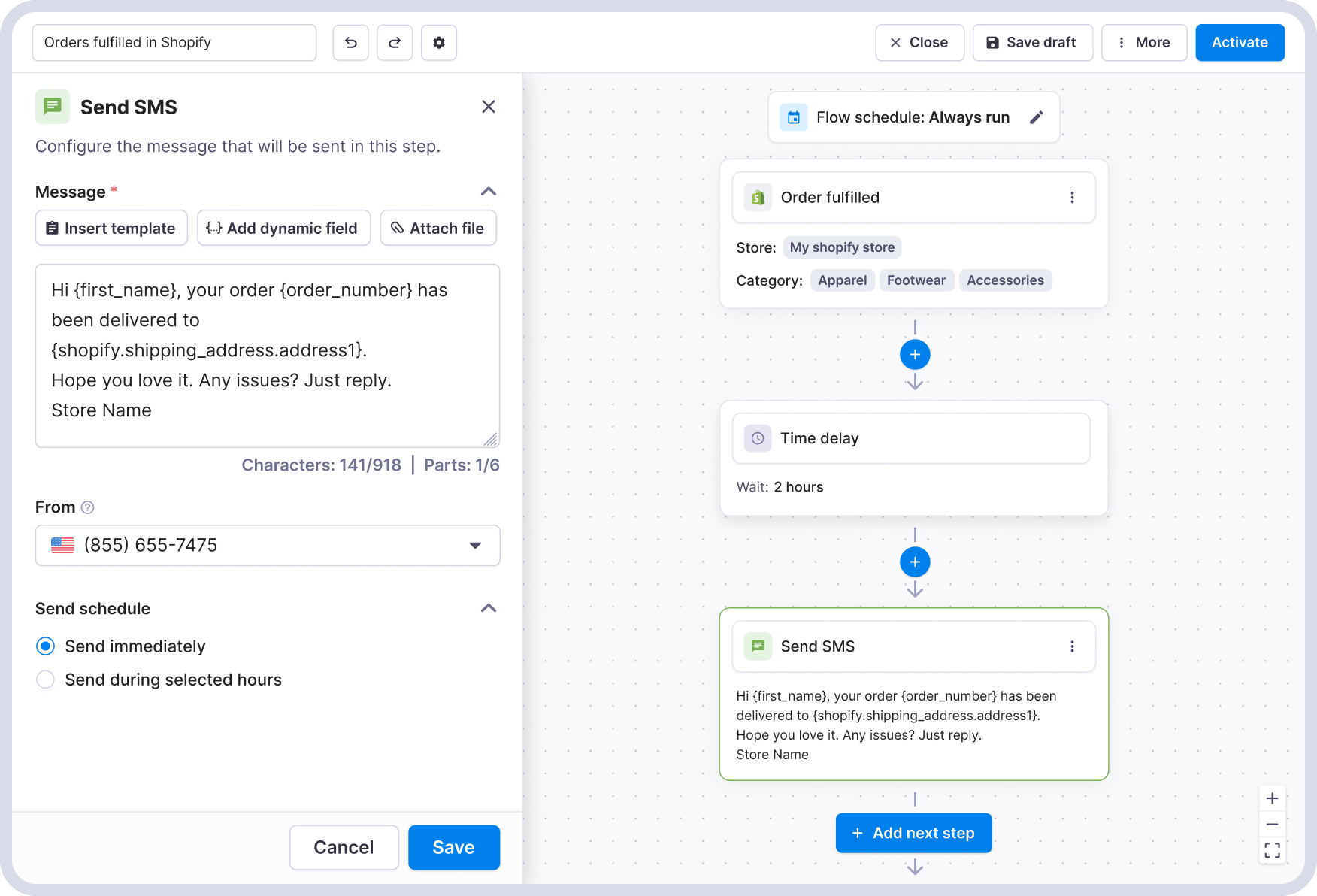
A simple SMS order confirmation flow looks like this:
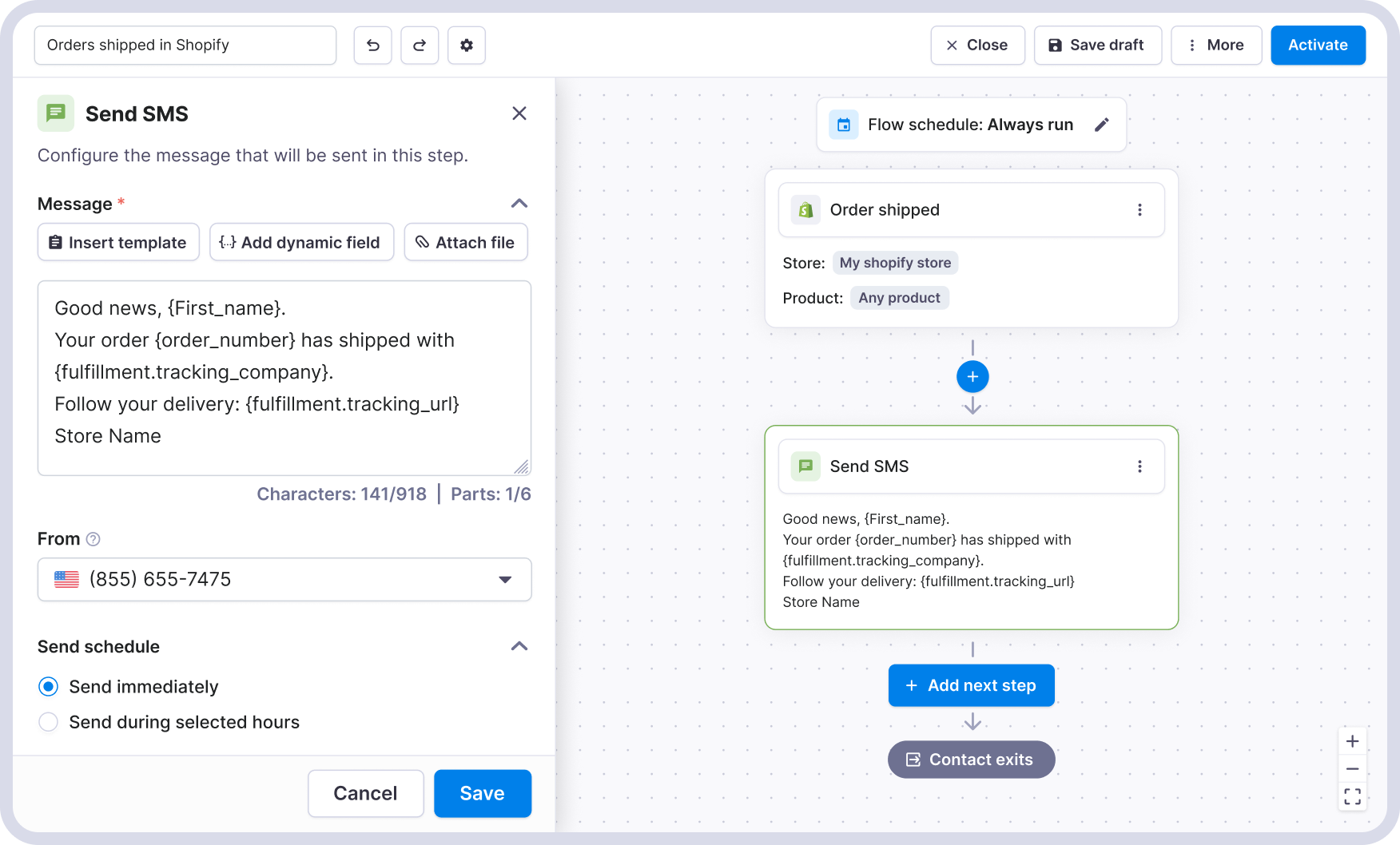
A shipping notification SMS looks like this:
A delivery follow-up looks like this:
3. Write messages that feel like real updates
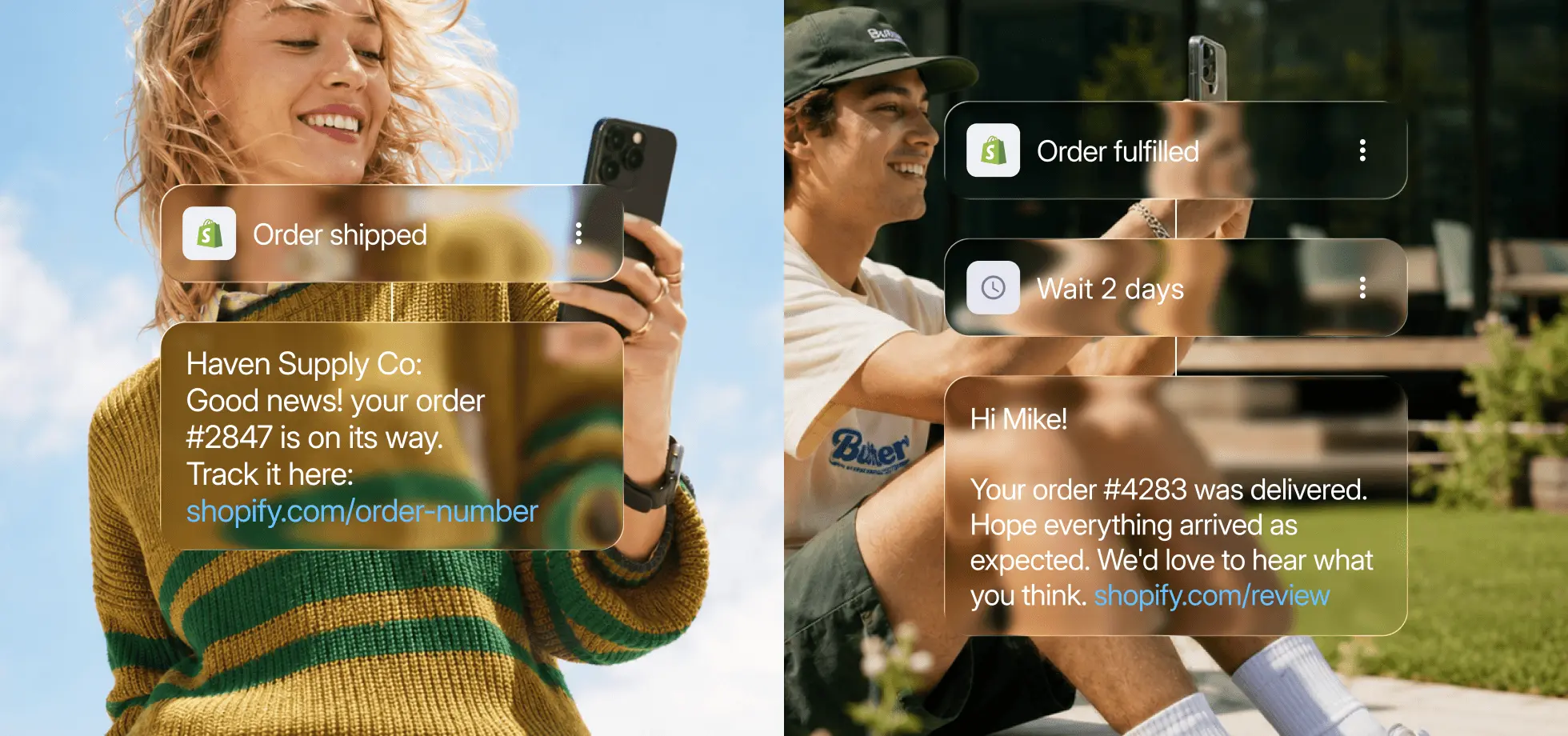
Use dynamic fields to pull order data directly into your messages. This lets you include details like the customer’s name, order details, or tracking link without writing each message manually.
In Textmagic, you insert these fields from the message editor. They’re grouped by source, such as Contact or Shopify order data, and you can pick exactly what you want to include.
- Customer name
- Order number
- Tracking link
- Store name
- Shipping details
Start with the essentials that help the customer understand what’s happening.
Example: basic vs personalised message
- Generic: Your order has been confirmed. Thank you for your purchase.
- With dynamic fields: Haven Supply Co: Hi Emma, your order #2847 is confirmed and being packed. We’ll text you when it ships. Any questions? Just reply.
4. Schedule your order notifications
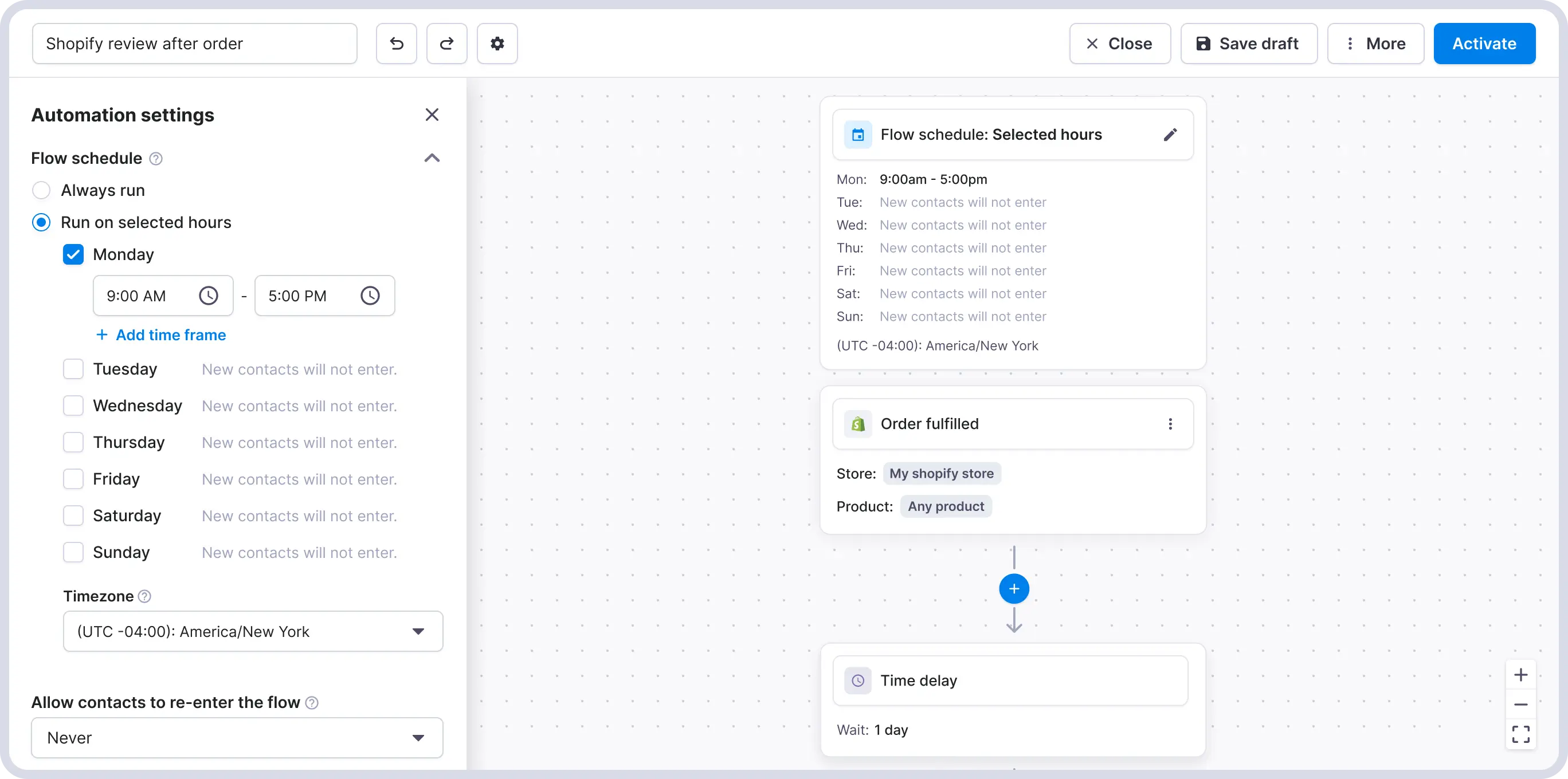
Before activating your flow, set a sending window so messages don’t go out at inappropriate times. In the US, commercial SMS is limited to 8am–9pm in the customer’s local time zone (TCPA). Other countries have their own rules.
In Textmagic, you can set active hours in the Scheduling settings. If a trigger fires outside that window, texts will be queued and sent later.
5. Activate and monitor
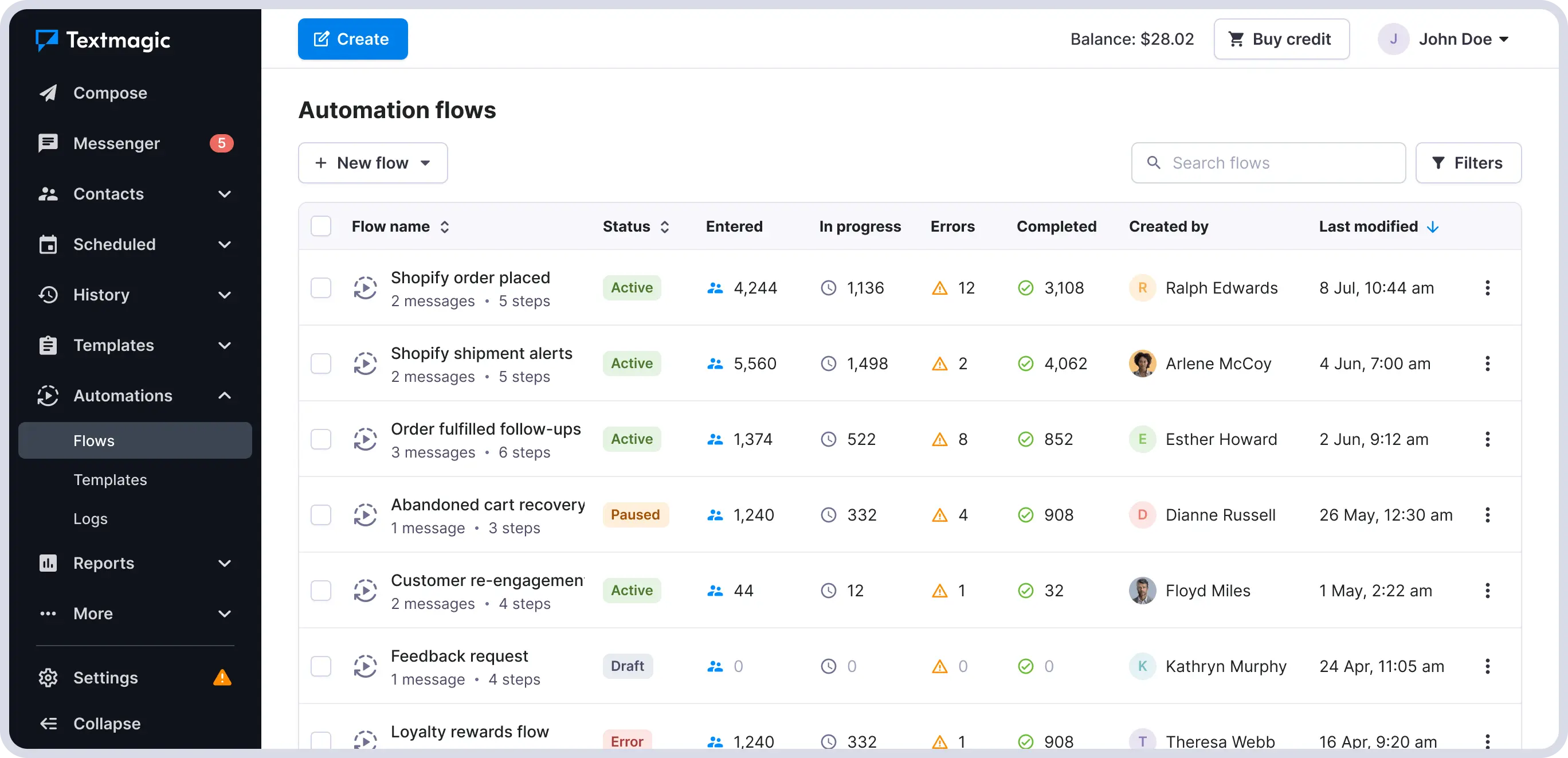
Once your messages are written and your sending window is set, activate the flow. From this point, every qualifying Shopify event will trigger the relevant message automatically.
Each message includes a delivery status (In progress, Errors, Completed), visible in your message or automation history. If something goes wrong, like an invalid number or carrier issue, you’ll see it.
Once your core flows are in place, you can build more advanced automations.
For example:
- Send follow-ups only if a customer hasn’t replied or opened an email
- Trigger different actions based on customer responses
- Combine SMS and email in the same flow
- Send internal alerts when a high-value order is placed
- Notify warehouse or fulfillment staff when urgent orders come in
- Trigger supplier notifications when low-stock products are sold
Start simple, then expand based on how your contacts respond. If you use email in these flows, avoid duplicating Shopify’s default email notifications.
Get SMS running for your store, the right way
The best time to reach a customer is right after they buy. SMS makes sure you do.
A note on abandoned checkout notifications
Abandoned checkout is the highest-impact trigger, but it works differently from the others.
Order confirmations and shipping updates are transactional. They’re tied to a purchase, and customers expect them.
Abandoned checkout messages are marketing. That means you can only send them to customers who have explicitly opted in to receive SMS at checkout. If you don’t have that in place yet, start with the order-related triggers and add abandoned checkout once consent is collected.
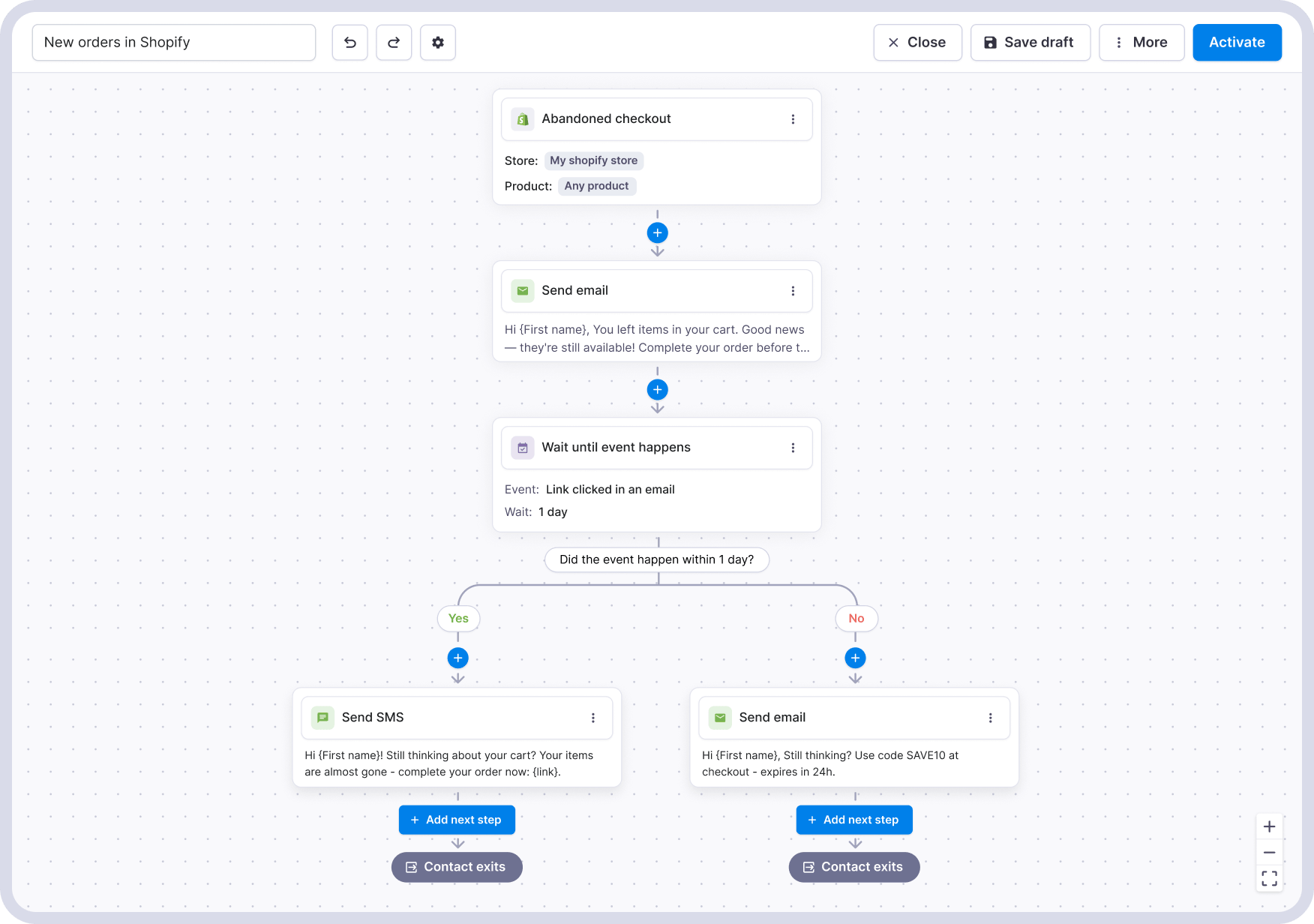
What this looks like once it is running
A customer places an order. Within seconds, they get a confirmation by SMS with their order number and your store name, alongside the usual Shopify email.
When the order ships, they receive a tracking link. When it’s delivered, they get a follow-up message. If they reply at any point, the conversation shows up in your Textmagic inbox.

Related articles

How to get your email campaigns delivered to the inbox in 2025
Getting an email campaign delivered doesn’t mean it ...

10 Ecommerce SMS templates to help you sell by text
Texts adverts and promotions represent an excellent ...

Text messaging advertising 101: Strategies and best practices
Within the time you took to check this article, over...

16 Key metrics for measuring and improving customer engagement
Customer engagement metrics assess the emotional con...

Top 10 changelog examples & why it’s important to showcase product changes
If you’ve ever launched or managed a product, then y...