



Over the last three months, our team has shipped 20+ new features and updates, more than 200 smaller enhancements, and new ways to connect Textmagic to the tools you already use, from HubSpot to AI assistants like Claude and ChatGPT.
That’s a lot to keep up with, so we won’t ask you to read the changelog. Instead, we’ve picked ten practical ways to put these updates to work. Each one fixes a specific problem and takes a coffee break or less to set up.
One of them comes from what businesses told us they want. In our latest survey of 500 US business leaders, a plain-language automation builder came out on top when they rated AI features, with 53% calling it highly valuable. It’s already live in Textmagic.
1. Set auto-replies for specific dates
⏱ 5 minutes
We’ve all texted a business and heard nothing back. Was the message received? Are they even open? When you’re away, that’s exactly what your customers are wondering, and some of them will go somewhere else.
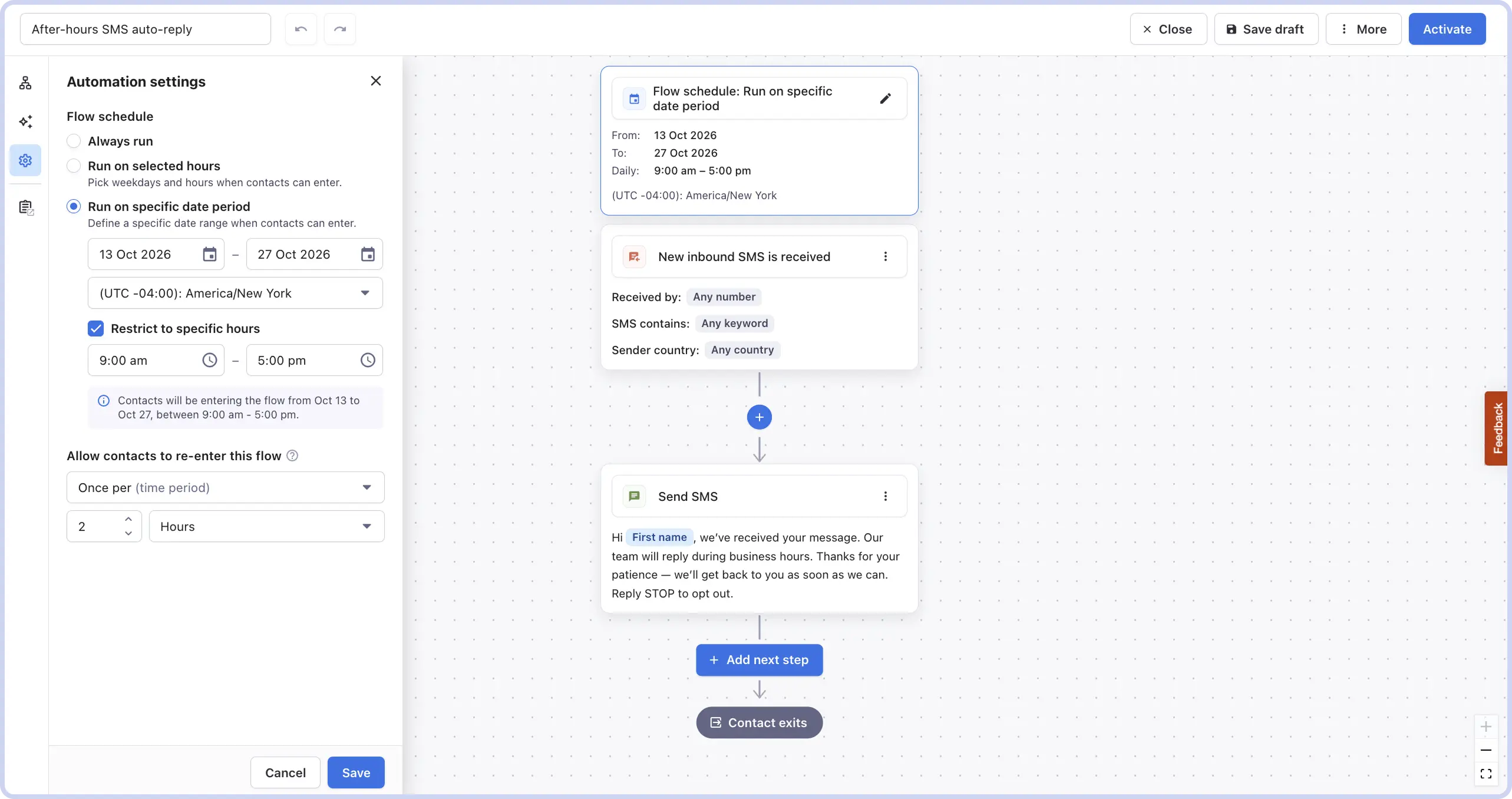
How to set it up:
- Go to Automations → Templates
- Choose one of the after-hours reply templates from the list.
- Adjust the content and timing as you see fit.
- Set the date range the flow should run, from your first day off to your last.
The flow starts and stops on its own, so there’s nothing to remember when you get back.
2. Build your first automation by describing it
⏱ 10 minutes
Most automations stall at the blank canvas. Mapping out triggers, delays and branches by hand takes time most small teams don’t have.
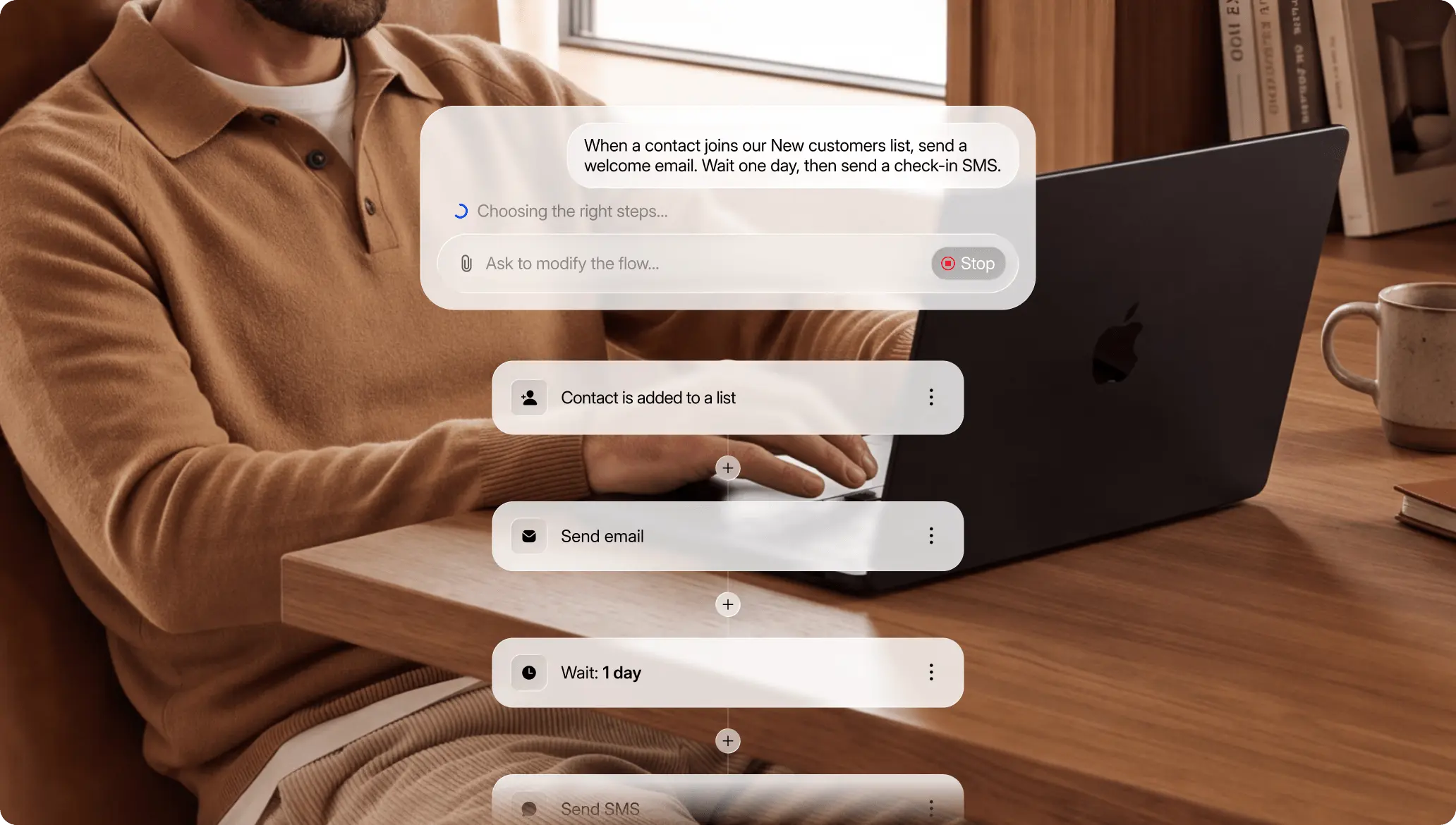
How to set it up:
- Open the AI automation builder.
- Describe the flow you want in plain English. AI builds it in seconds.
- Check each step, adjust the wording and timing, then switch it on.
The best prompts name four things: what starts the flow, how long to wait, what to send, and on which channel. Vague prompts give vague flows. Treat what the AI builds as a first draft and do a two-minute review before you switch the automation on.
Here are a few examples of prompts:
- “When someone fills in my contact form, send them a welcome SMS right away, then a follow-up email 2 days later with a link to book a call.”
- “Text customers who abandon checkout with a friendly reminder and discount coupon.”
- “When a contact is added to my New Leads list, send a welcome email, wait 1 day, then send a check-in SMS asking if they have questions.”
3. Run Textmagic from your AI assistant
⏱ 5 minutes
You’re deep in something else when you remember you need to text a customer back. That means opening Textmagic, finding the conversation, typing the reply. If you already work with an AI assistant, you can skip all that and just ask it to do it for you.
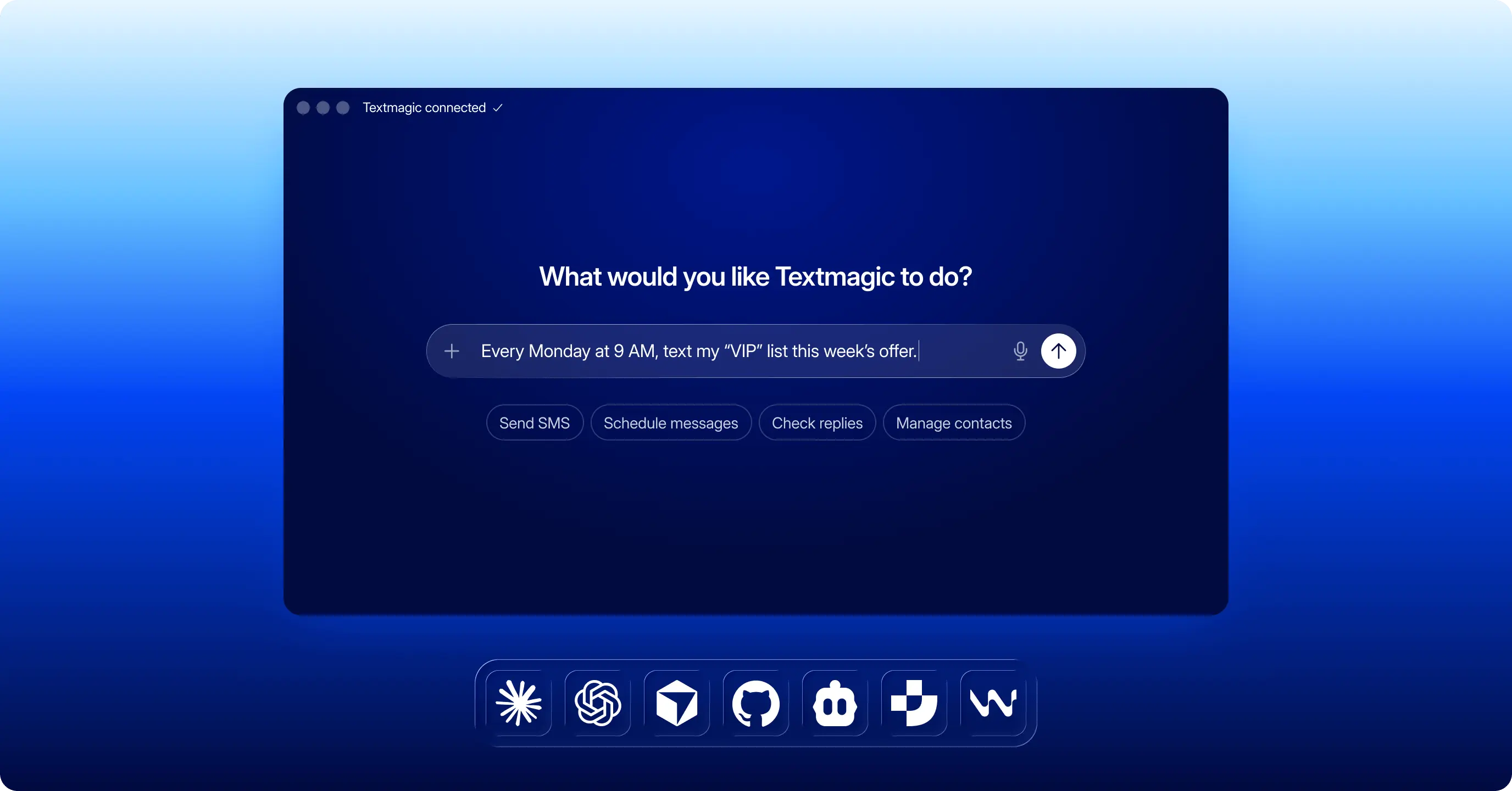
How to set it up:
- Claude: open Textmagic in the connector directory and click Connect.
- ChatGPT: install the Textmagic plugin from the plugin directory.
- Gemini or Antigravity CLI: add Textmagic as a custom app or MCP server using the address https://mcp.textmagic.com.
- Approve access on the Textmagic sign-in screen.
- Setup steps for every tool are in our MCP guide.
You always stay in control: before anything is sent, the assistant shows you the recipients, the message and the exact cost, and waits for your OK.
Here are a few examples of requests for your AI assistant:
- “How many SMS credits do I have left?”
- “Text everyone in my Clients list a reminder about Saturday’s sale.”
- “Show me today’s replies and summarize them.”
- “Every Monday at 9 AM, text my VIP list this week’s offer.”
- “Tag everyone in my Events list as ‘newsletter’.”
4. Follow up based on what people clicked
⏱ 15 minutes
Sending everyone the same follow-up ignores what they’ve already told you. A click on your pricing link means something different from a click on your how-it-works page.
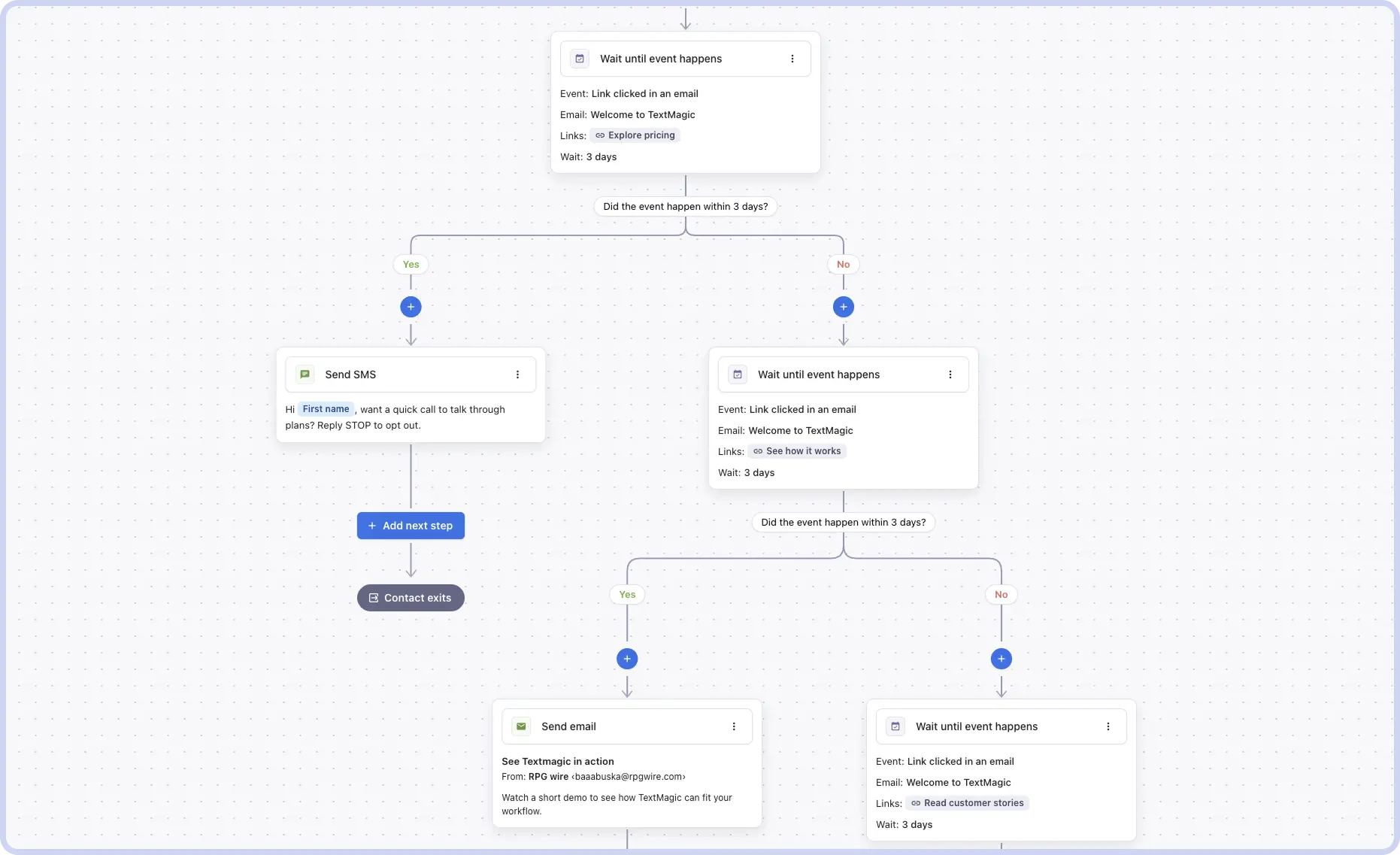
How to set it up:
- In an automation, send an email with two or three links that point to different interests.
- Add a step that routes contacts by the link they clicked.
- Give each path its own follow-up text or email.
Try this: one email, three paths.
- Clicked Pricing → a text offering a quick call to talk through plans.
- Clicked How it works → an email with a short demo video.
- Clicked Customer stories → a case study from their industry.
Bonus: test three versions at once. Not sure which message works best? Split paths now support more than two branches. Send a third of contacts to each version of your opening line, and Textmagic keeps the percentages adding up to 100% for you. Check which path gets the most replies, then keep the winner.
5. Jump between steps in your automations
⏱ 10 minutes
When your flow splits into different paths, each path often ends the same way, with the same thank-you text or the same final check-in, copied over and over. Then one day you update the message in one path and forget the others, and customers get different versions.
With ‘Go to another step,’ every path can lead to one shared ending, so you only edit it once.
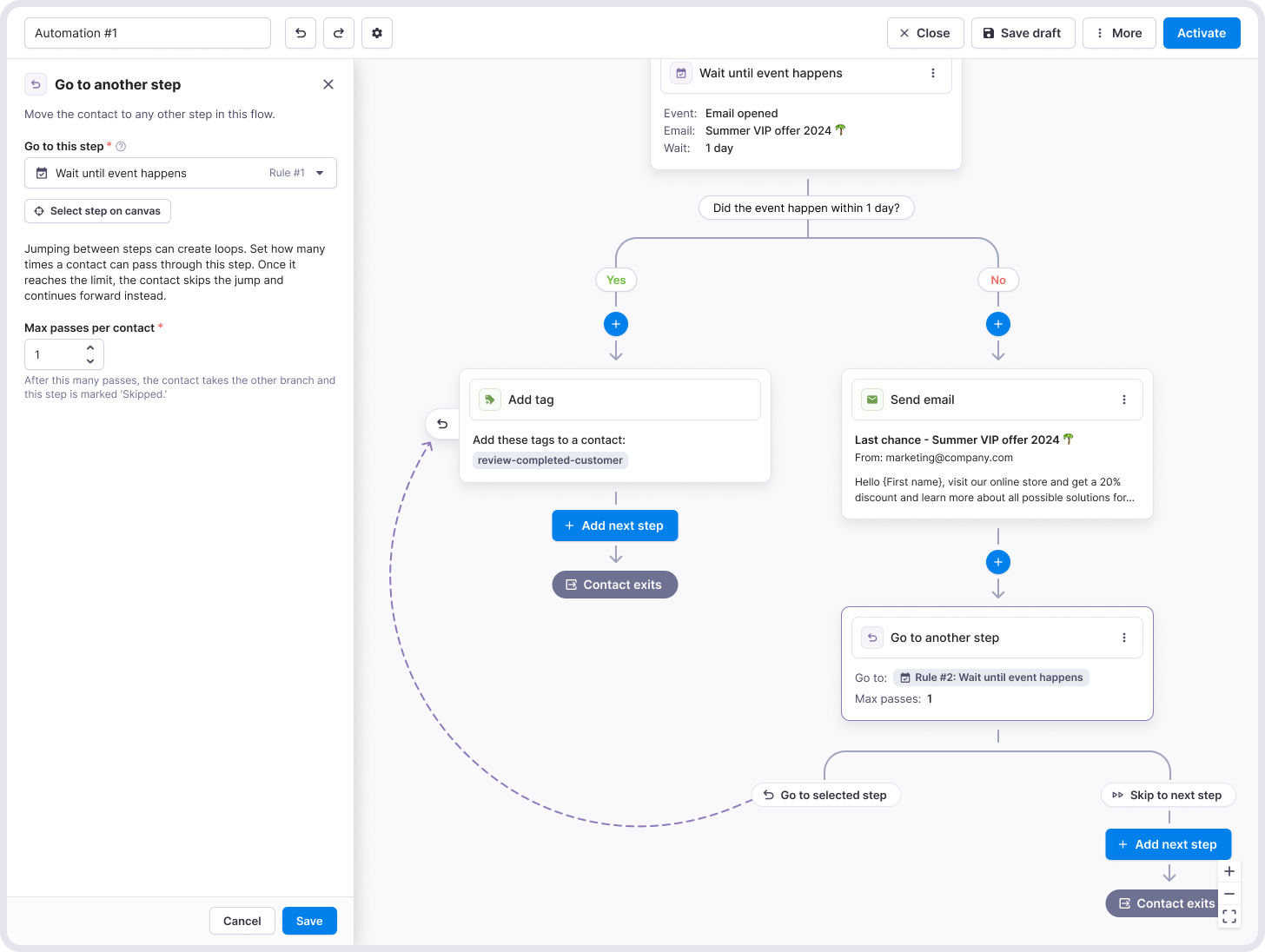
How to set it up:
- Open a flow that splits into paths.
- At the end of each path, add the new Go to another step action.
- Point every path to one shared ending, like a thank-you text or a final check-in.
Now there’s one copy of those steps to maintain, and the flow is far easier to read.
Try this: the same action can also loop back. For a reminder sequence, send the reminder, wait two days, then jump back to the reminder step for one more try. Always build in a way out of the loop (for example, a branch that ends the flow after the second reminder).
6. Connect HubSpot for faster follow-ups
⏱ 15–20 minutes
Textmagic now works with HubSpot. Your HubSpot contacts sync to Textmagic automatically, so there’s nothing to export or copy.
You can send texts when something changes in HubSpot, like a new lead or a closed deal, and every text you send or receive shows up on the contact’s record in HubSpot.

How to set it up:
- In Textmagic, go to Settings → Integrations, find HubSpot and click Connect. Approve access in HubSpot.
- Match your fields. First name, Last name, Email and Phone map automatically; add anything else you want for personalization, like lifecycle stage.
- Pick the Textmagic list your HubSpot contacts should land in, then click Start sync.
- Create an automation with a HubSpot trigger, or follow-up with HubSpot actions.
Contacts sync from HubSpot into Textmagic, and every text you send or receive is logged on the contact’s HubSpot timeline. Opt-outs sync back too.
Check out our HubSpot guide for 10 useful automations if you want to:
- Send personalized SMS when a HubSpot form is filled out;
- Confirm and remind customers of booked meetings;
- Create a task, deal, or note in HubSpot when you receive texts
- Respond to high-priority tickets; and more.
7. Welcome new contacts right away
⏱ 10 minutes
When someone gets in touch, they want to hear back quickly. If they wait too long, they’ll often go with whoever answered first. Textmagic can now text new contacts the moment they arrive.
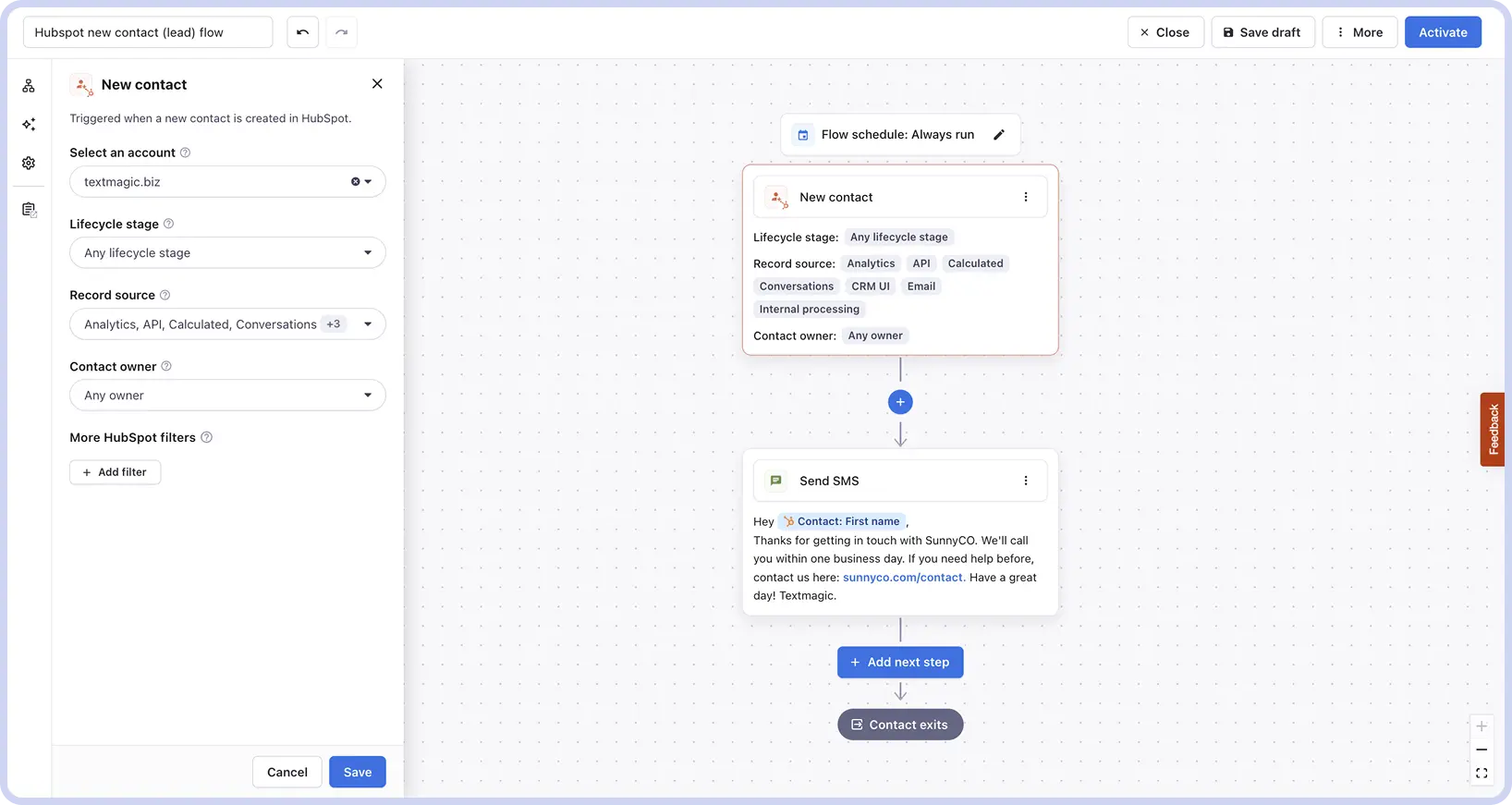
If you’ve connected HubSpot (see the previous tip), new HubSpot contacts can start a welcome flow automatically. HubSpot isn’t the only way in, though. A flow can also start when someone fills in a form, when a contact is added to Textmagic, or when their details are updated.
How to set it up:
- Create a new automation and pick one of the new triggers: Form submitted, Contact created, or Contact updated.
- Add a Send SMS step with a short welcome. Personalize it with the contact’s first name.
- Optionally, add a delay and a follow-up with more details.
Running a store? There’s also a new Shopify order ready for pickup trigger, so customers get a text the moment their click-and-collect order is waiting. For full store setups, see our guides for Shopify and WooCommerce.
8. Send data to your other tools with a webhook
⏱ 15 minutes
A lead just showed interest, but your sales team won’t know until they check Textmagic. With a webhook, the lead’s details go straight to your CRM or other tools, so your team can follow up right away.
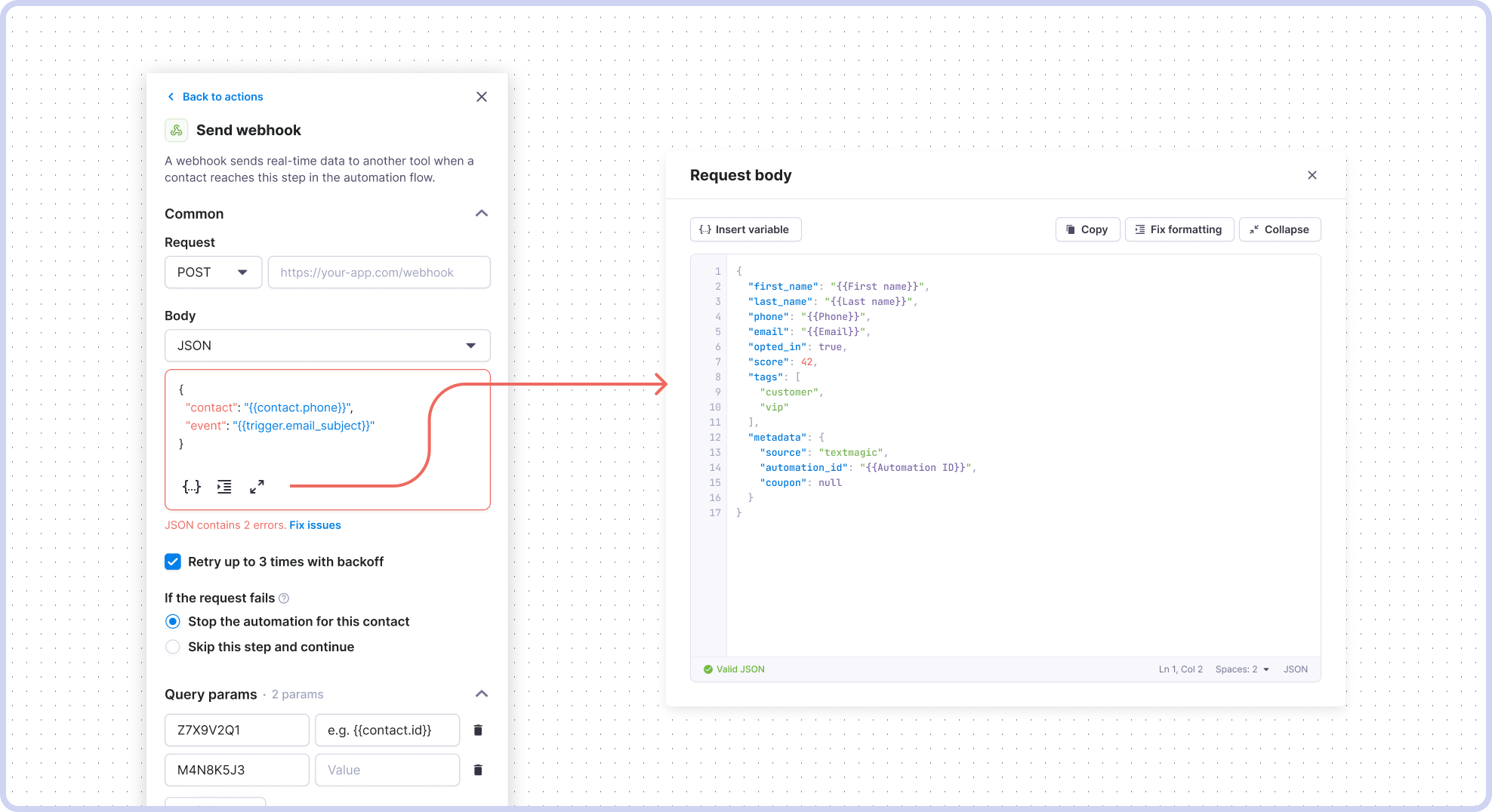
How to set it up:
- Get a webhook URL from the tool that should receive the data, such as your CRM, an internal system, or an automation tool like Zapier or Make.
- In your Textmagic flow, add the new Send webhook action at the point where something important happens.
- Paste the URL, run a test contact through the flow, and check that the data arrives.
The webhook can sit anywhere in a flow, so contact data moves the moment it matters. For example, when a lead clicks “Book a call” in your follow-up email, send a webhook with their details to your CRM, or to Zapier so it can alert your sales team in Slack.
No HubSpot or developer? Zapier now has two new Textmagic triggers: a contact is added to a list, or a tag is added to a contact. Tag someone “Hot lead” in Textmagic and a Zap can alert your team or update a spreadsheet.
9. Color-code campaigns to find them fast
⏱ 5 minutes
Once you’re sending promos, reminders and support replies from the same account, your message history turns into one long list. Finding last month’s campaign, or what a teammate sent, means scrolling until you spot it.
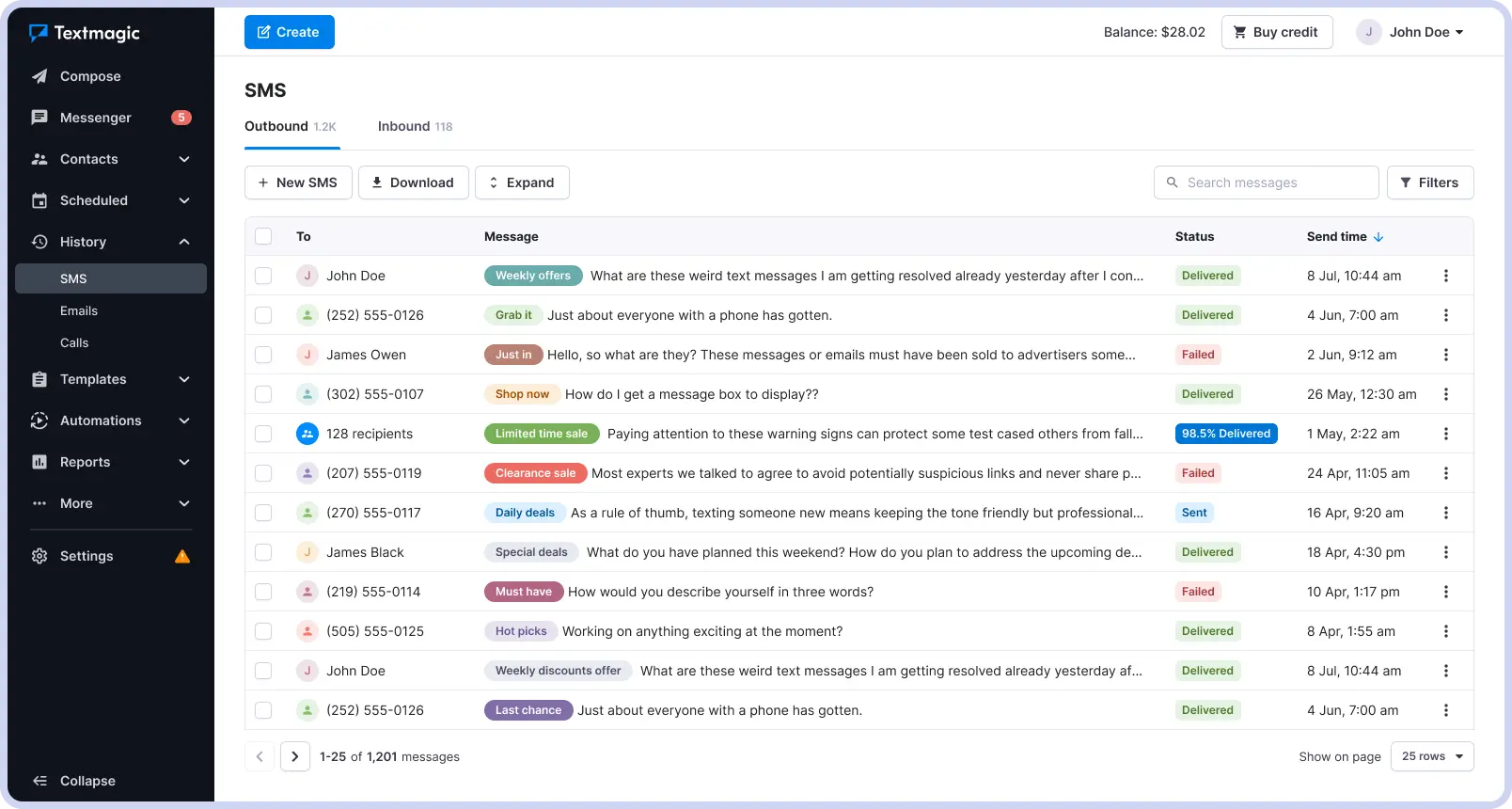
How to set it up:
- Pick a simple color system. For example, green for promotions, blue for reminders, orange for support, and red for anything urgent.
- Label as you send. When you write a campaign in Compose, add its label before you hit send.
- Label what’s already out. On the History page, add labels to past messages you’ll want to find again.
- Filter instead of scrolling. On History, filter by label, sender number, the team member who sent it, or the number of recipients.
Try this:
- See every promo from the last quarter by filtering for your green label.
- Check what a new teammate sent this week by filtering by user.
- Find your big broadcasts quickly by filtering for messages sent to many recipients.
10. Do a weekly automation health check
⏱ 10 minutes a week
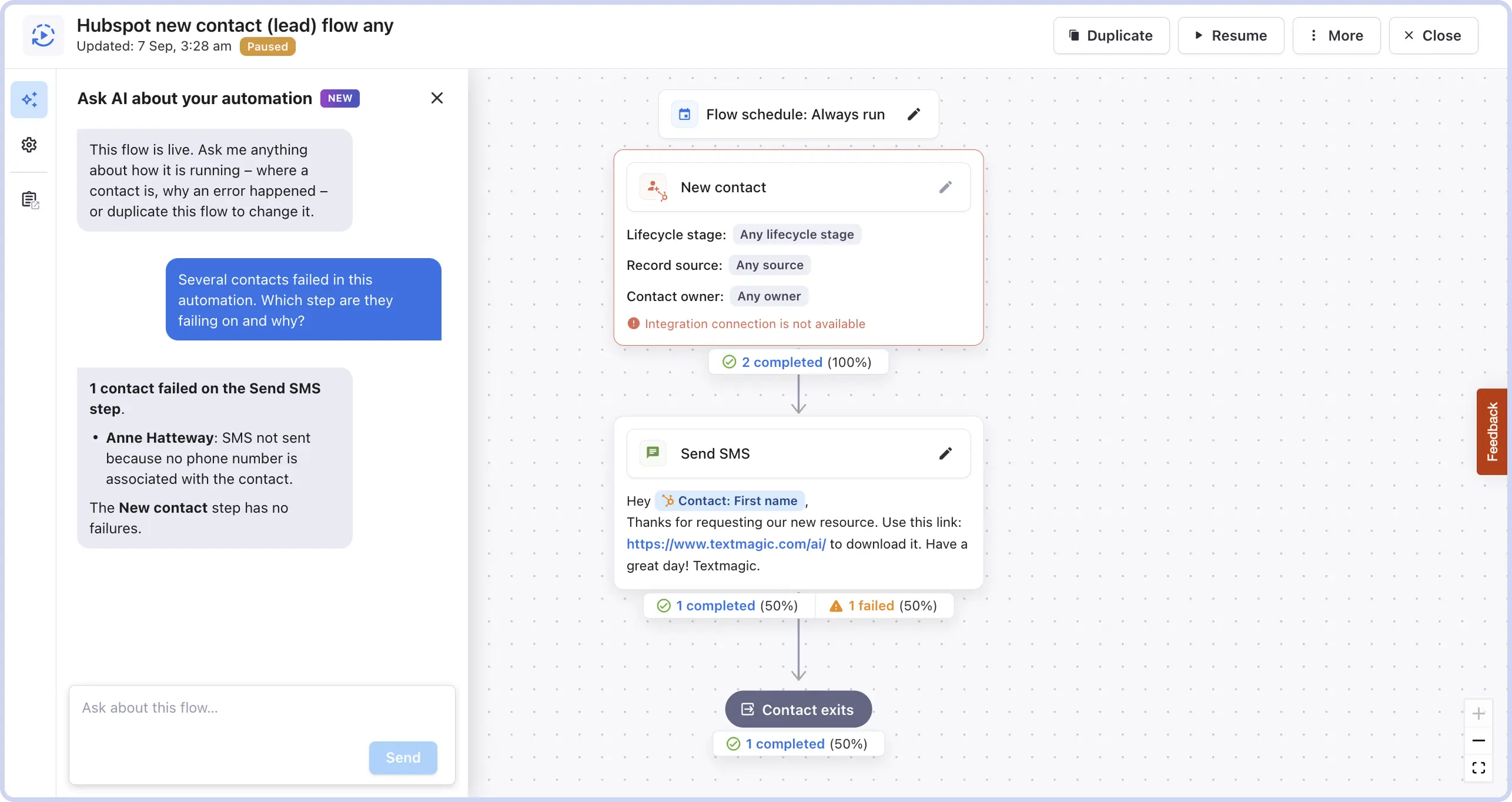
Once an automation is running, it’s easy to forget about it. But sometimes a step fails, or a flow stops running, and you don’t notice until a customer asks why they never got your message. Ten minutes a week is enough to catch problems early and see what’s actually working.
Block 10 minutes in your calendar every Monday and run through these three steps:
- Fix what broke (4 minutes). In Automations, check the report of running automations for any errors. If a step failed, ask AI why and get a suggested fix: retry the contact, remove them from the flow, or pause the automation. Nothing changes until you approve it. Need to rerun a step for everyone stuck at it? You can retry them all at once.
- Check what worked (3 minutes). Open the new email reports to see deliveries, opens, clicks, bounces and unsubscribes over time, and compare results by team member.
- Reuse your best audience (3 minutes). Open the segment of contacts who engaged most and export it as a CSV or XLSX file for your next campaign or add to a list.
Where to start
You don’t need to set up all ten today. Pick one or two that fit how you work:
- Running a small business? Start with out-of-office replies and describe your first automation to our AI.
- Getting lots of new leads? Start with welcome texts and follow-ups based on clicks.
- Working with a sales team? Connect HubSpot.
- Sharing one account with your team? Organize your texts with labels.
- Already running a few automations? Expand them with our new advanced rules and check for errors.
- New to automations? Let our AI build the first one for you.
Each one takes about as long as a coffee break, so try one this week and come back for the next. Not using Textmagic yet? Start your free trial and try them for yourself.

Related articles

3 Easy Google Calendar SMS reminder automations with Textmagic and Zapier
Managing schedules has become effortless thanks to d...

MMS messaging for business: An overview of its benefits and applications
MMS messaging has been around for almost 20 years no...

How to text your Shopify customers (and stay compliant)
A practical guide to SMS consent, number registratio...

15 Effective follow-up email templates guaranteed to help you close more deals
Follow-up emails enhance business relationships and ...

Bulk SMS marketing: Benefits, strategies, and best practices
Bulk text messaging is an effective way to reach a w...