


If your team works in Zoho CRM, you’ve probably already automated plenty of email follow-ups. Workflow rules can send emails, and Cadences help organize emails, calls, and tasks. SMS is less straightforward.
Zoho two-way texting requires a separate Zoho Voice plan and Cadences don’t include an SMS step. That often leaves the texts that matter most, like following up with a new lead, confirming a meeting or replying to a missed call, as jobs someone has to remember.
Connect Textmagic, and those moments can become part of a workflow. Here are ten Zoho CRM SMS automations worth building. You can set them up step-by-step, or describe what you want to our AI flow builder.
1. Welcome new leads
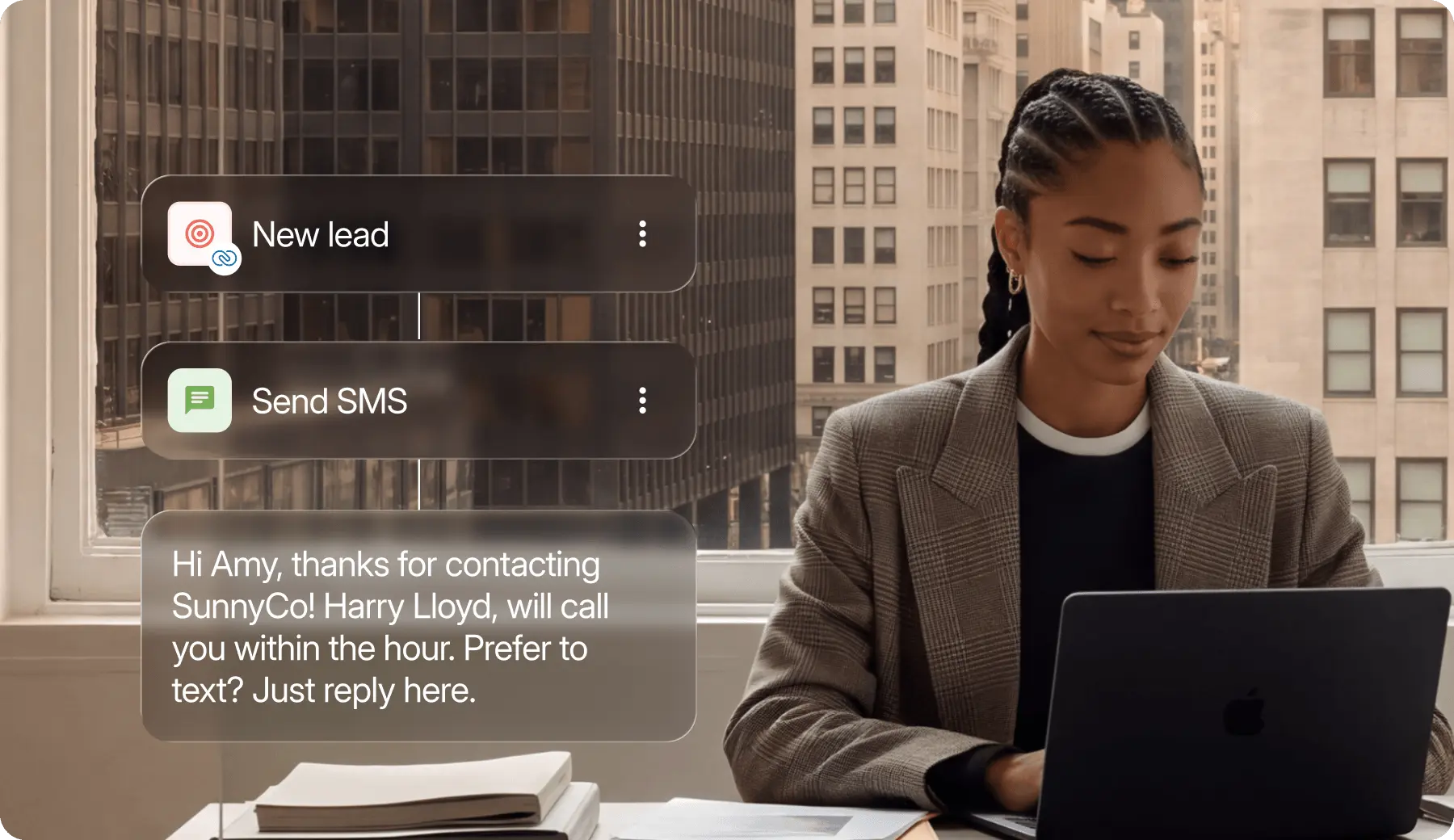
One of the most powerful things you can do for a new lead is to reply instantly. It’s also the easiest thing to miss on a busy day. This simple flow sends a welcome text to new leads.
How to set it up:
- Trigger: New lead
- Actions: Send SMS → Wait until event happens (e.g. Lead field updated, 1 hour) → If nothing changes: Create task: “Call back new web lead”
- Sample message: Hi {First name}, thanks for contacting Acme! {Contact owner} will call you within the hour. Prefer to text? Just reply here.
Make it better:
- Use filters to personalize welcome texts by lead onwer, source, or status;
- Add a Wait for reply & split step after the welcome text. Leads that reply can be converted and create a deal in the same step, while those that do not reply can receive a follow-up.
2. Turn inbound texts into Zoho leads
Not everyone fills out a contact form. Sometimes their first message is simply: “Hi, can you help?”
This flow makes sure the conversation finds its way into your Zoho account.
How to set it up:
- Trigger: New inbound SMS
- Actions: Create lead → Create task → Send SMS
- Sample reply: Thanks for getting in touch with Acme! Someone from our team will text you back today.
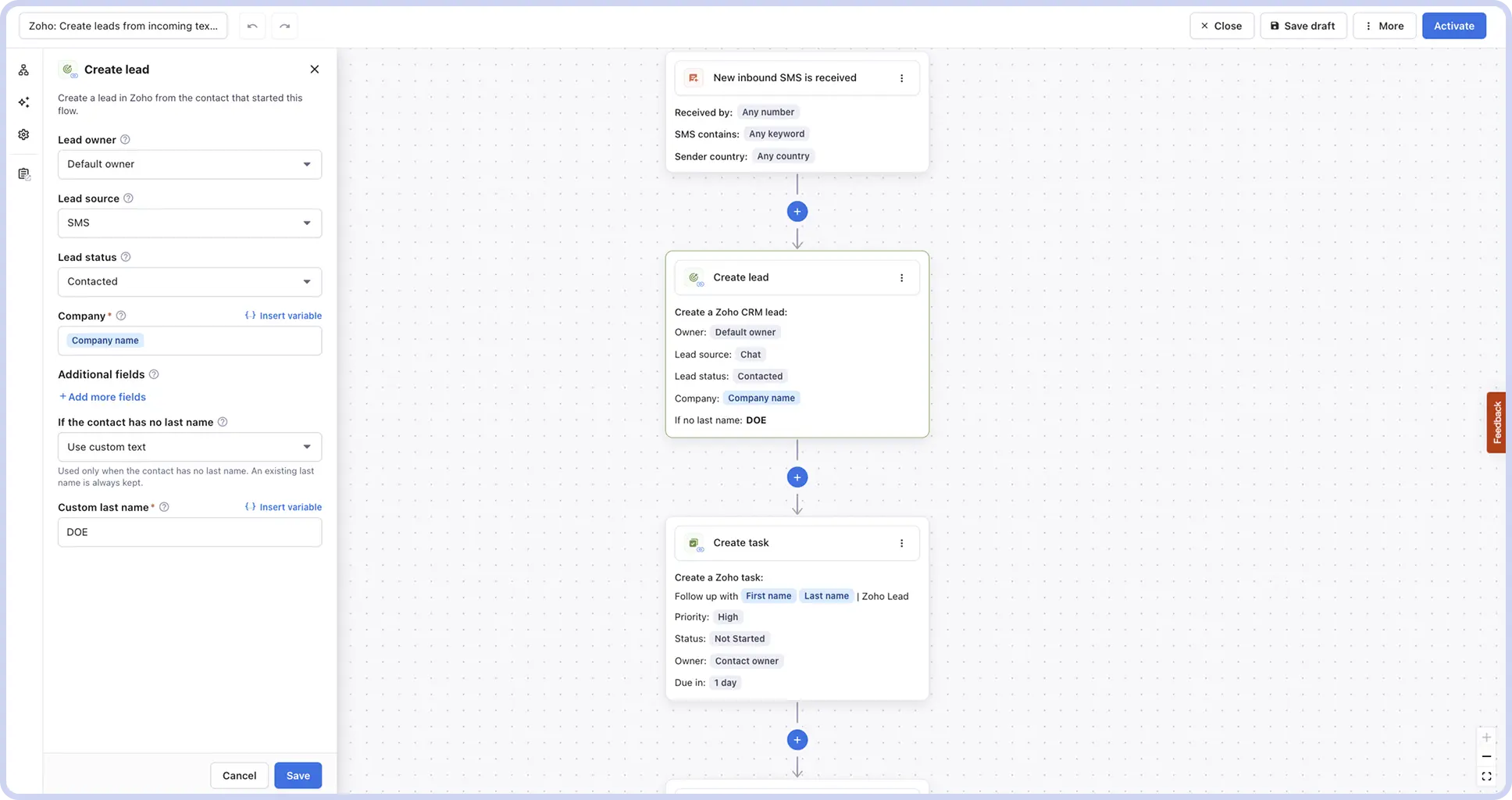
You can set the additional filters in the Create lead step. Using a source such as “SMS” makes these inquiries easier to find and report on later.
Make it better: The same idea works for sign-ups. Use Subscribe form filled as the trigger to create a Zoho lead when someone joins through a Textmagic SMS subscribe form, and record where they opted in.
3. Text back when you miss a call
A missed call is often a lead calling someone else next. Following up quickly keeps the conversation going and helps you set clear expectations.
How to set it up:
- Trigger: New call, filtered by Call type: Missed
- Actions: Send SMS → Wait for reply & split → If they reply: Add note to contact → Create task
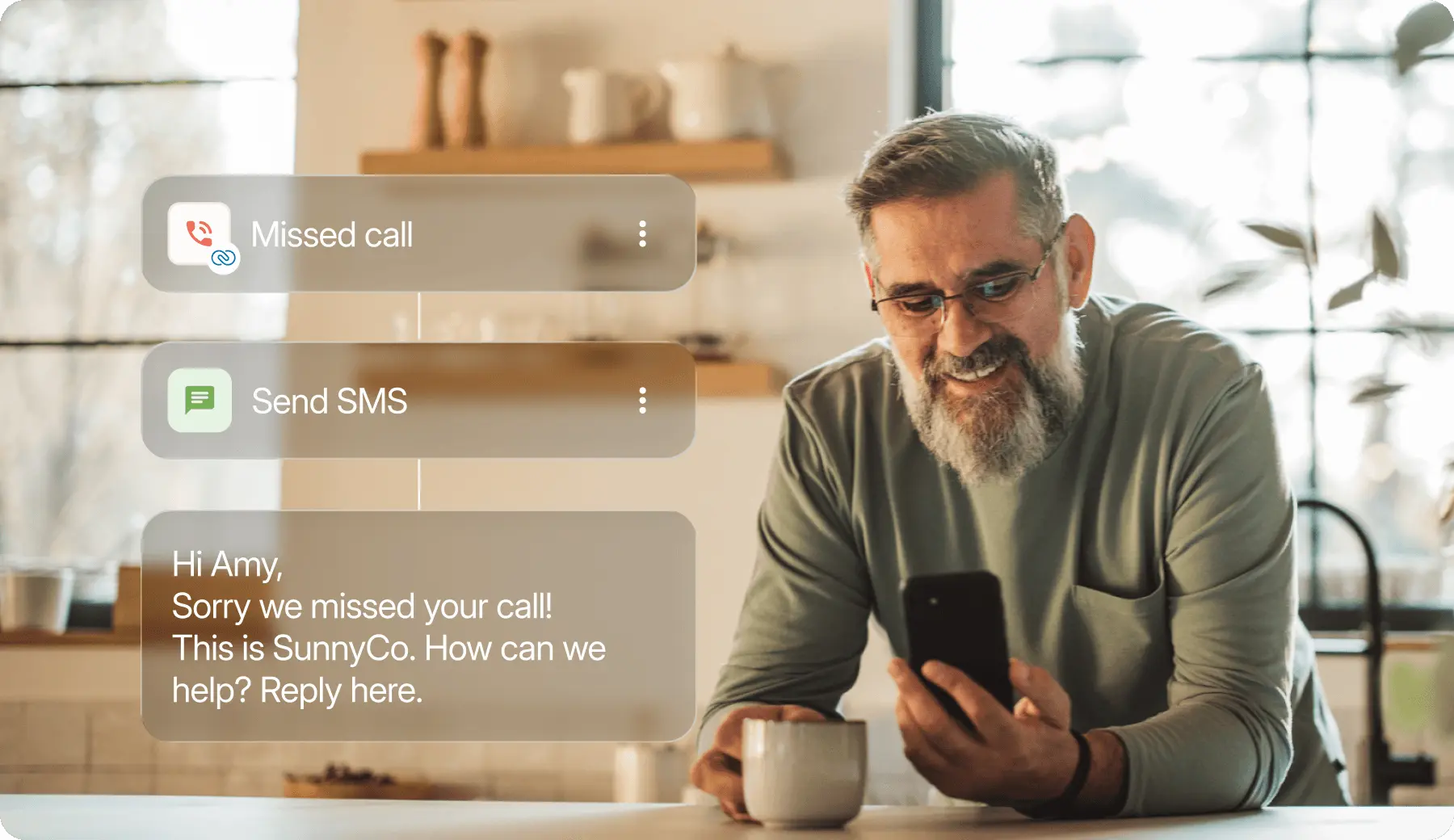
Make it better: Filter by Call Owner and sign the message with that person’s name. The follow-up will feel like it’s coming from the contact owner the customer tried to reach.
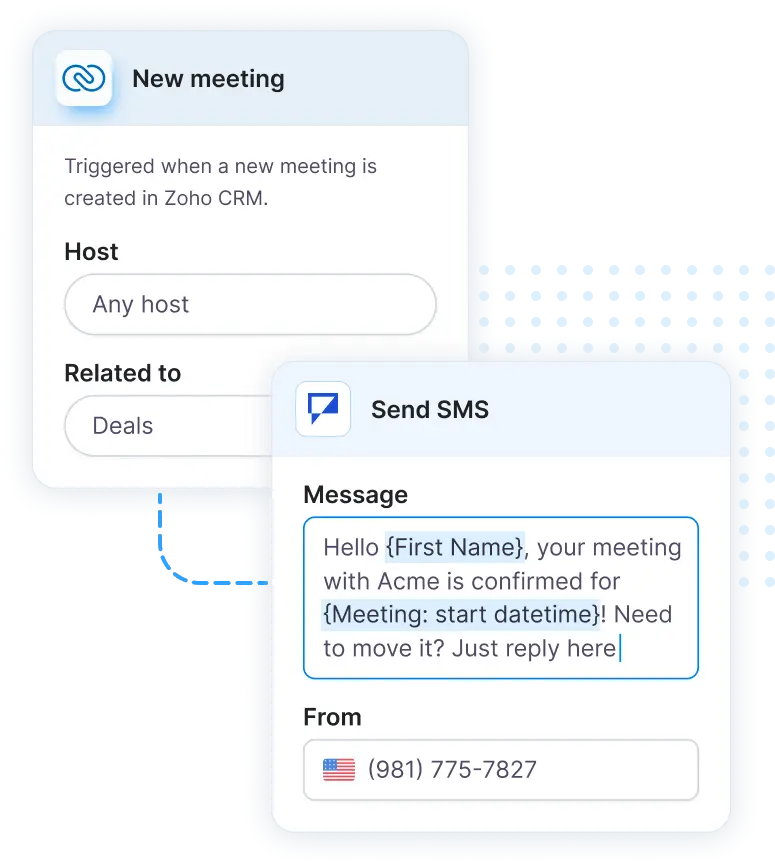
4. Confirm meetings and send a reminder
Booking a meeting is one thing. Getting everyone there is another. A confirmation text gives everyone the details in a place they’re likely to see, and a reminder the day before helps keep the appointment on their radar.
How to set it up:
- Trigger: New meeting
- Actions: Send SMS → Time delay (until the day before) → Send SMS
- Confirmation SMS: Hi {First name}, your meeting with Acme is confirmed for {Meeting start time}. Need to move it? Just reply.
- Reminder SMS: Reminder: your Acme meeting is tomorrow at {Meeting start time}. See you then!
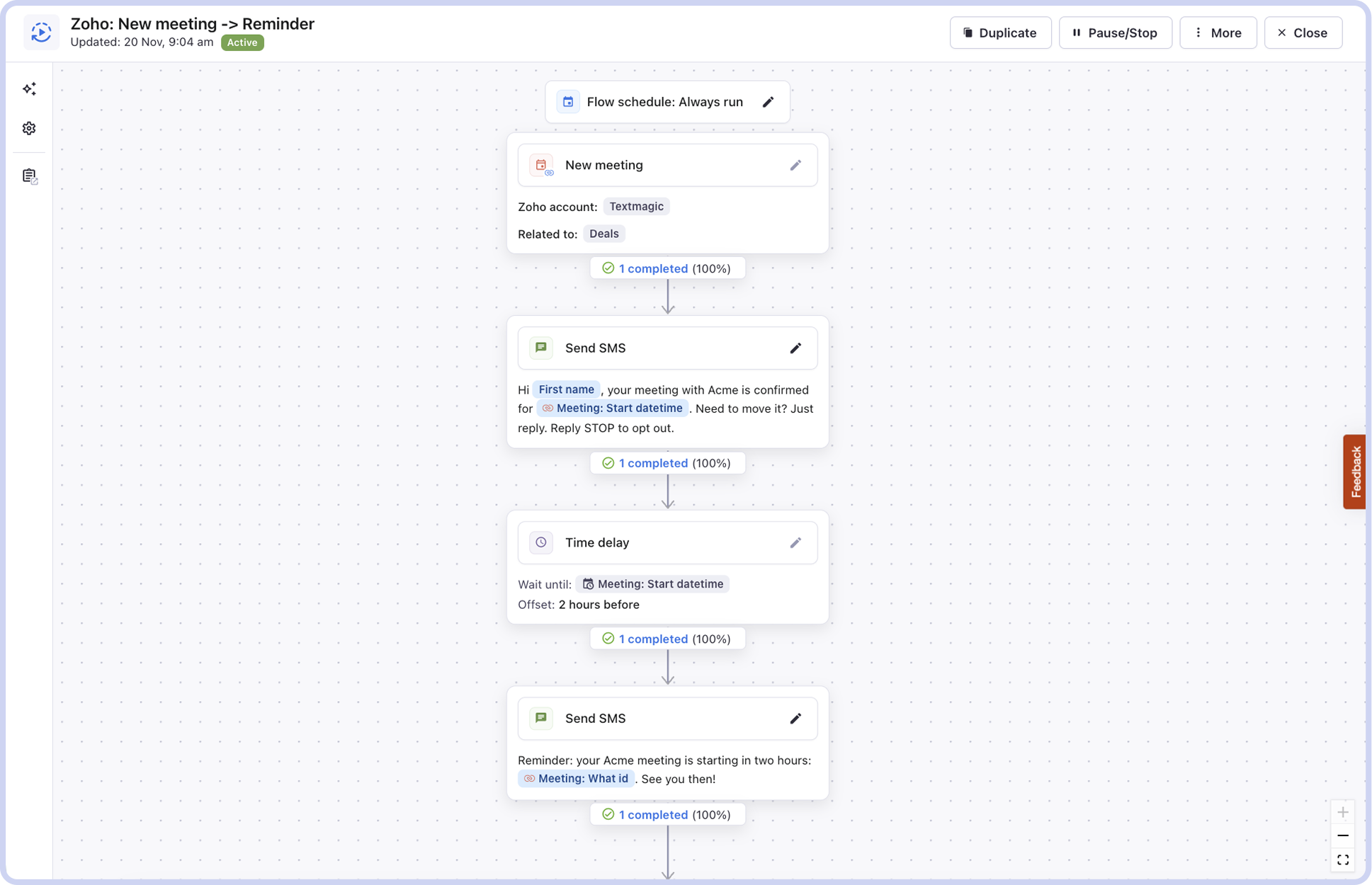
Make it better:
- Reschedule notices. Build a second flow on Meeting field updated, so anyone whose meeting moves gets the new time straight away.
- Filter by host or record. The New meeting trigger can be filtered by host and by the record the meeting is related to, so you can send different messages per rep or only text contacts linked to a deal.
- After the meeting. Add another time delay, then send a short recap or the agreed next step while the conversation is still fresh.
5. Book the meeting when a deal is ready
The previous flow handles meetings that are already on the calendar. This one goes a step further: when a deal reaches a particular stage, it creates the meeting and takes care of the follow-up texts.
How to set it up:
- Trigger: Deal field updated, filtered by Stage
- Actions: Create meeting → Send SMS → Time delay → Send SMS0
- Sample message: Hi {First name}, your Acme onboarding call is set for {Meeting start time}. Need to reschedule? Reply here.
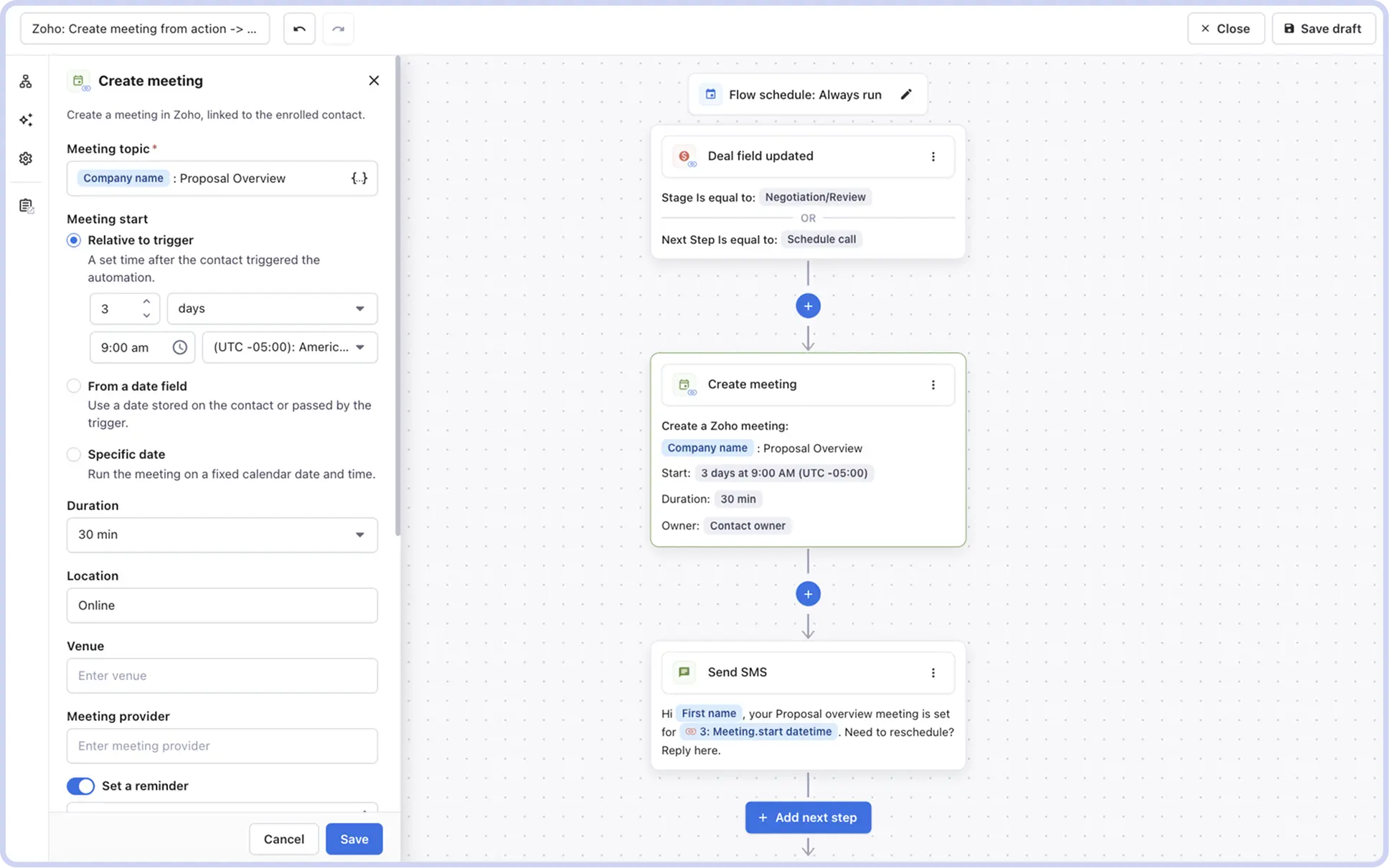
Make it better: The Create meeting step can set the start time three ways: a set time after the trigger, a date stored on the record, or one fixed slot for everyone, which works well for webinars or demos.
If the date field is empty or the date has already passed, set the action to skip and continue the flow.
6. Follow up when a deal goes quiet
Not every deal needs another nudge. But if you’ve been waiting for a response and nothing has changed, it’s helpful to have a follow-up ready instead of relying on someone to remember.
Zoho CRM doesn’t send an event when nothing happens. The Wait until event happens rule gives you a workaround: wait for an update and act only if the update doesn’t come.
How to set it up:
- Trigger: New deal, filtered by Pipeline or Stage
- Steps: Wait until event happens (Deal field updated, 3 days) → If nothing changes: Send SMS → Create task for the deal owner
- Sample message: Hi {First name}, we’ve just sent your proposal to {Email}. Any questions? Reply here and {Deal Owner} will get back to you.
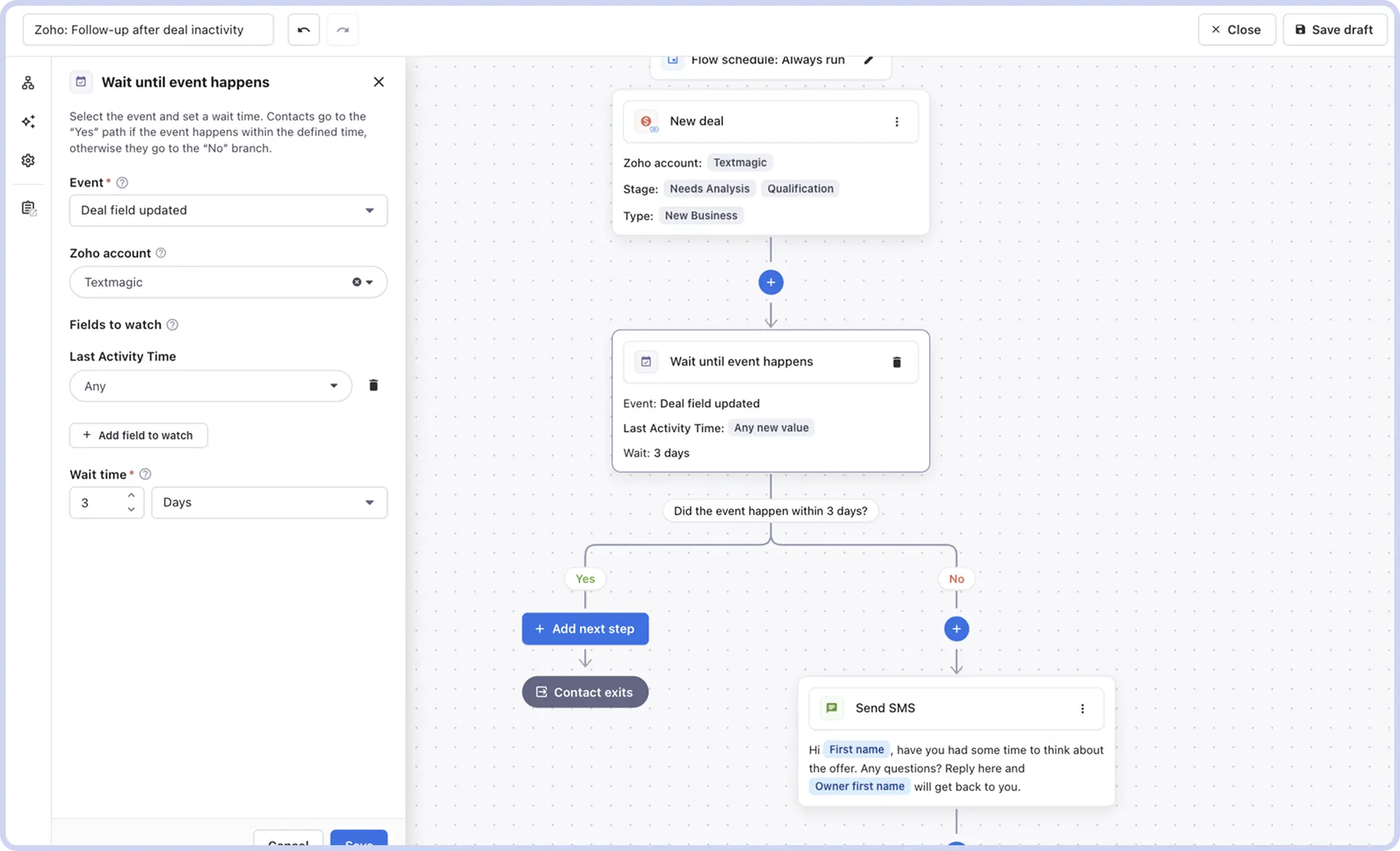
Make it better: Use the same pattern for support. Start with New case, wait 24 hours for a change, and send a check-in if the case hasn’t moved.
7. Welcome customers when a deal is won
A deal marked Closed Won is the start of the customer relationship, not the end of the conversation. A simple welcome sequence can explain what happens next without asking a rep to complete one more task.
How to set it up:
- Trigger: Deal field updated, filtered by Stage: Closed Won
- Actions: Send SMS → Time delay (3 days) → Send SMS or email (add more steps as needed)
- Sample message: Hi {First name}, welcome to Acme! {Owner first name} will be in touch today to book your onboarding. Reply here if anything’s urgent.
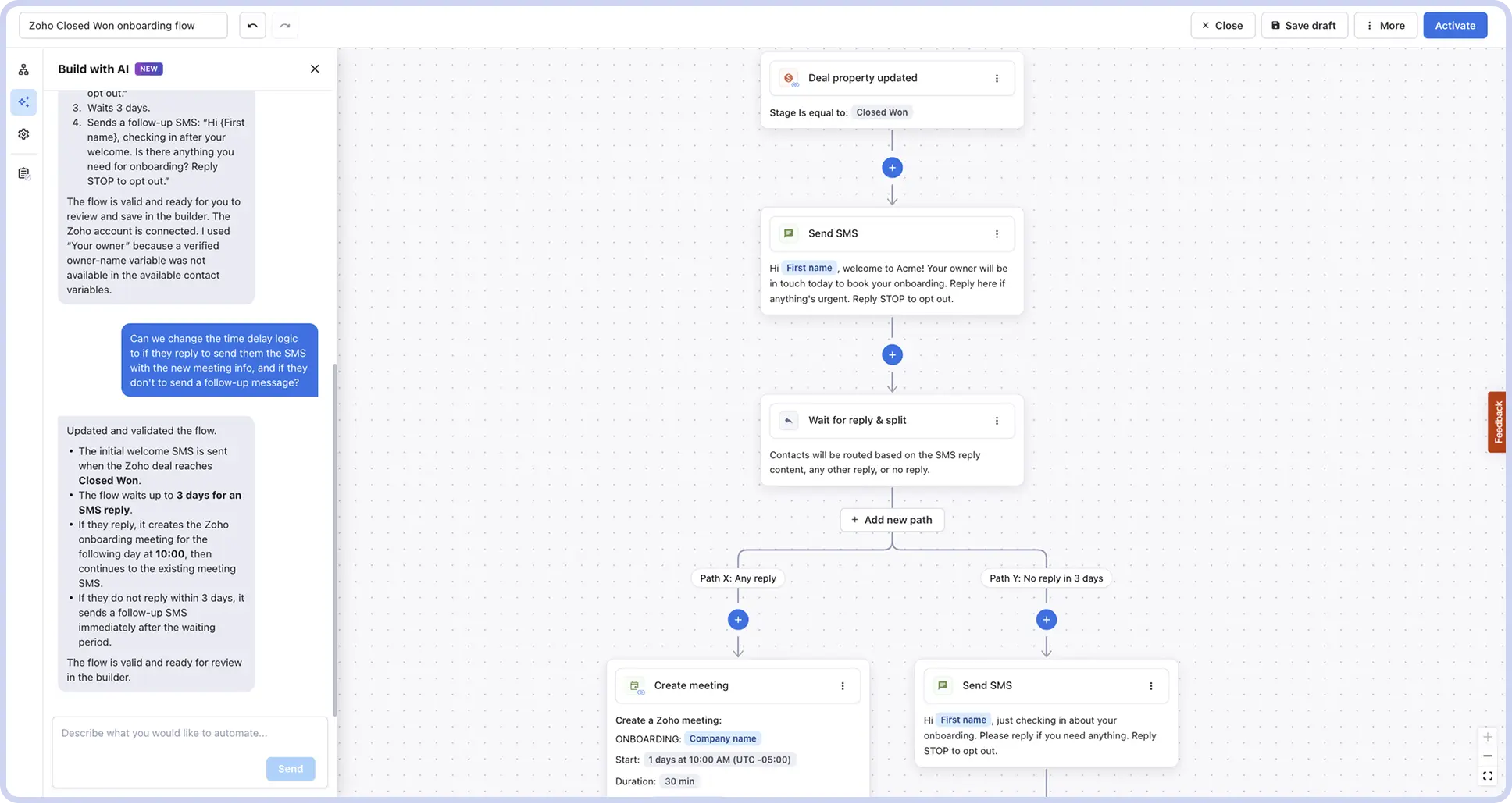
Make it better: Spread the onboarding messages across the first few days rather than sending everything at once. You can also create an onboarding meeting or tailor later messages based on customer actions and responses.
8. Send invoice and payment reminders
Invoice emails are easy to overlook. A short text with the invoice details gives customers another way to spot what they owe and ask a question if something doesn’t look right.
How to set it up:
- Trigger: New invoice
- Actions: Send SMS → Time delay (X days) → Send SMS reminder
- Sample message: Hi {First name}, invoice {Invoice number} for {Amount} from Acme is ready. More details on email. Questions? Just reply.
- Sample reminder: Hi {First name}, a friendly reminder that invoice {Invoice number} is due soon. Already paid? Thank you, you can ignore this message.
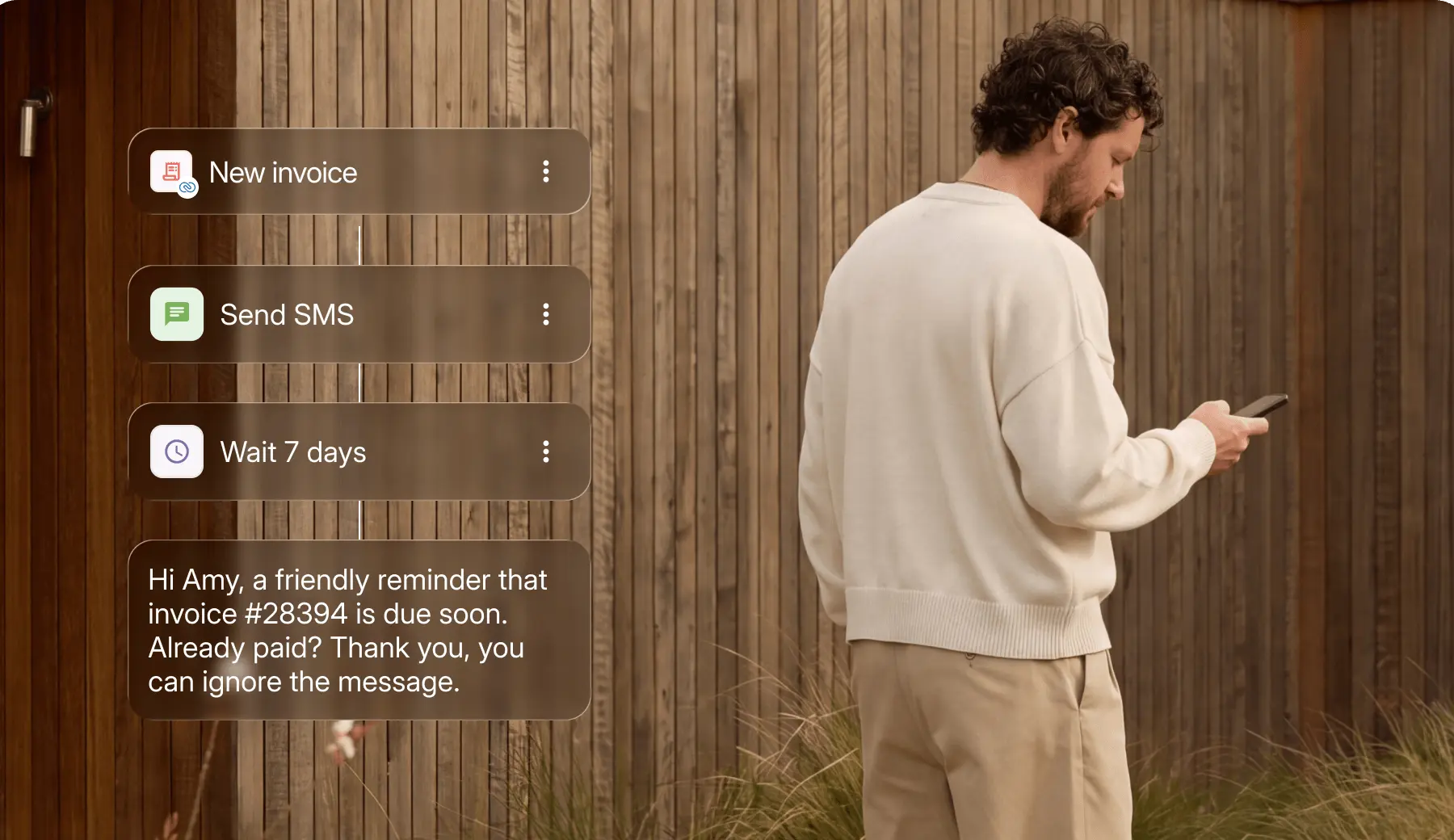
Make it better: Add an extra field in Zoho CRM for your Invoice Status to mark Paid invoices and send a thank-you text to confirm payments. You have to create this field (and any other custom fields) before syncing Textmagic to Zoho CRM.
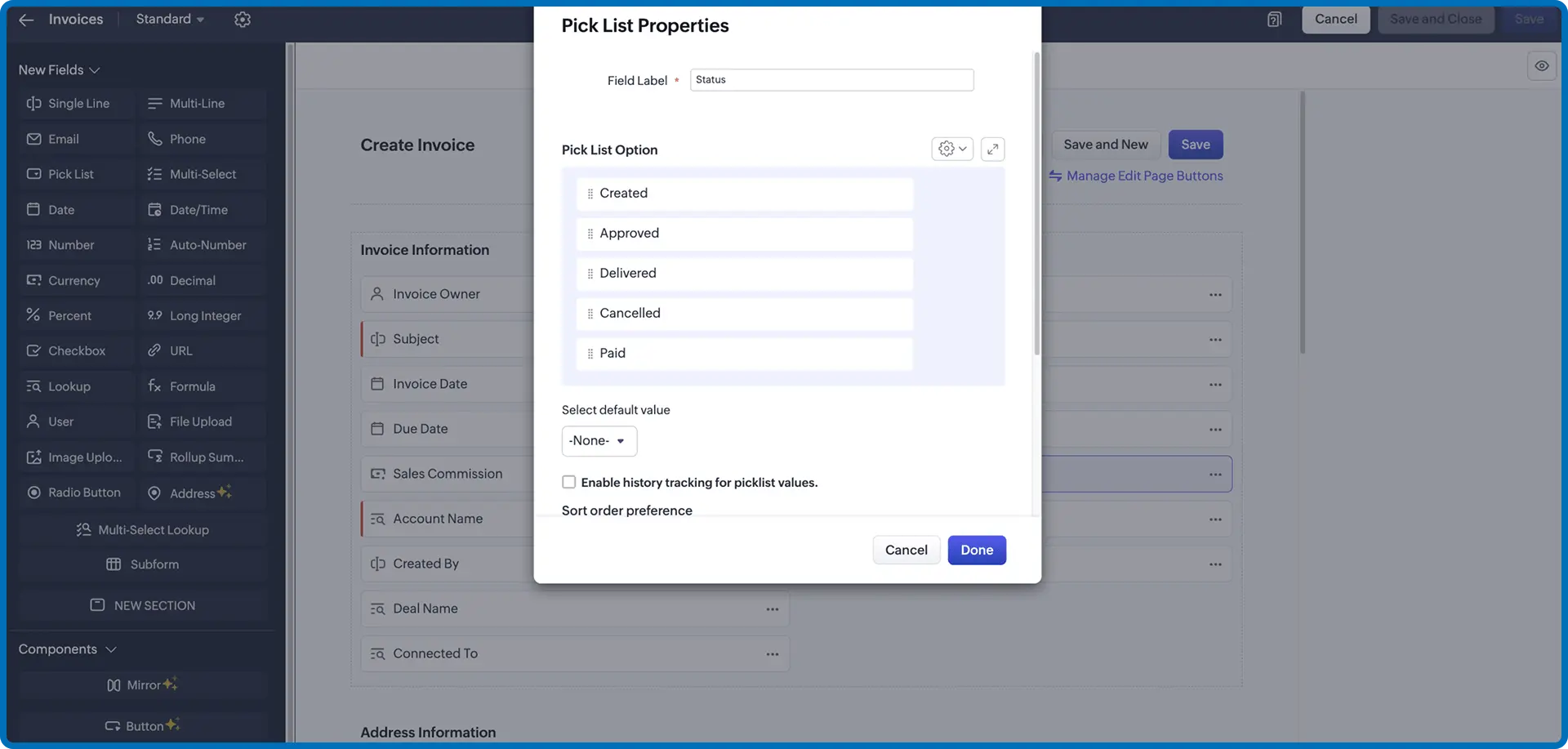
Now you can send a payment confirmation or thank-you message when an invoice is paid. Make sure the reminder flow doesn’t continue messaging customers whose invoices are already paid.
9. Keep customers updated about support cases
When someone raises a support issue, they want to know it reached the right team. When the case is resolved, a brief check-in gives them a chance to say whether everything is working.
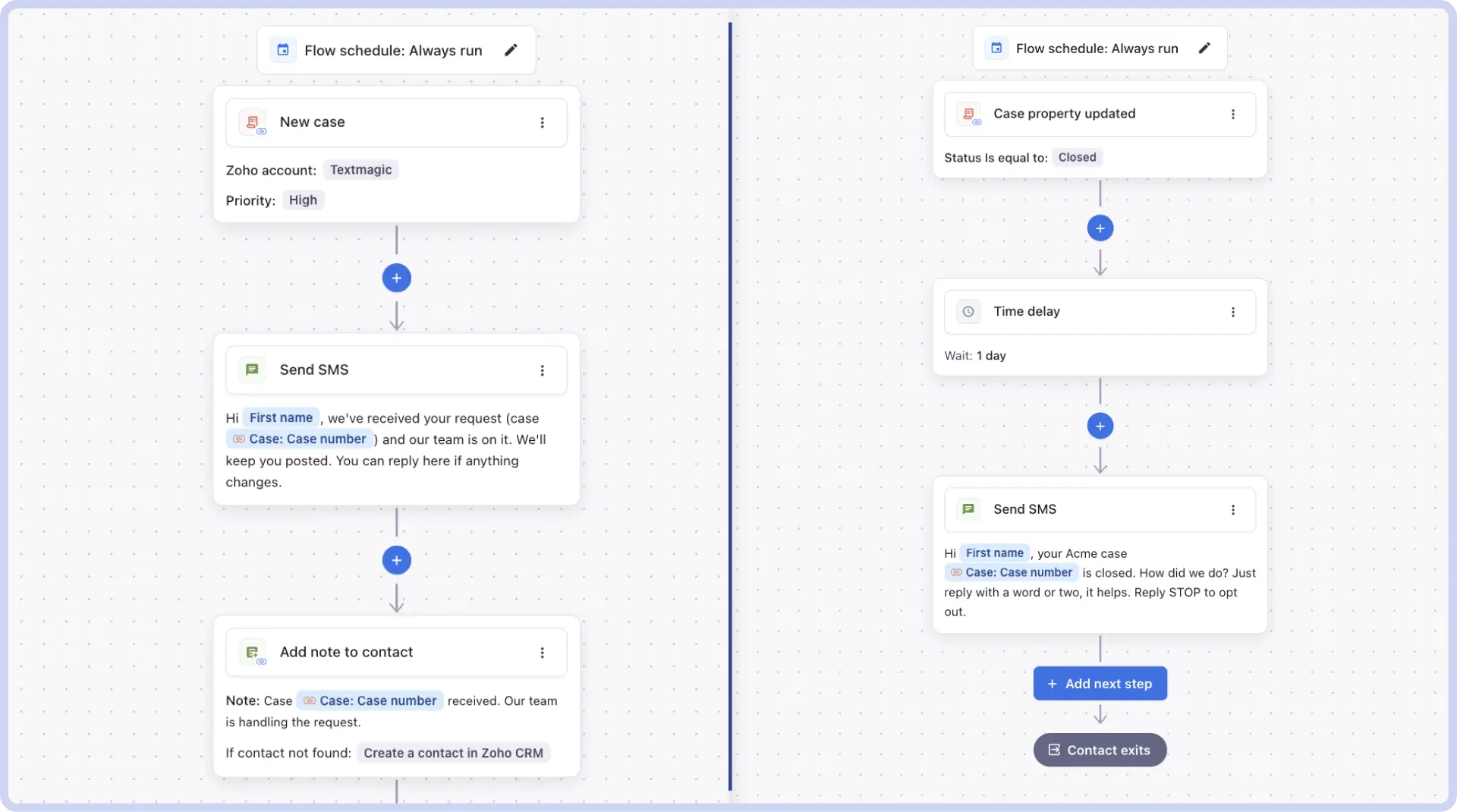
Flow A: Acknowledge the case
- Trigger: New case, filtered by Priority
- Actions: Send SMS → Add note to contact
- Sample message: Hi {First name}, we’ve received your request (case {Case number}) and our team is on it. We’ll keep you posted. You can reply here if anything changes.
Flow B: Ask for feedback when the case closes
- Trigger: Case property updated, filtered by Status: Closed
- Actions: Time delay → Send SMS
- Sample message: Hi {First name}, your Acme case {Case number} is closed. How did we do? Just reply with a word or two, it helps.
This can work in reverse, too. If someone texts in with a complaint or issue, a Create case action can open a Zoho case for the support team to handle.
10. Follow up after a sales call
A call often ends with “I’ll send you the details”. When the rep logs the call outcome in Zoho CRM, Textmagic can send that follow-up right away, so the next step doesn’t wait for someone’s inbox to clear.
How to set it up:
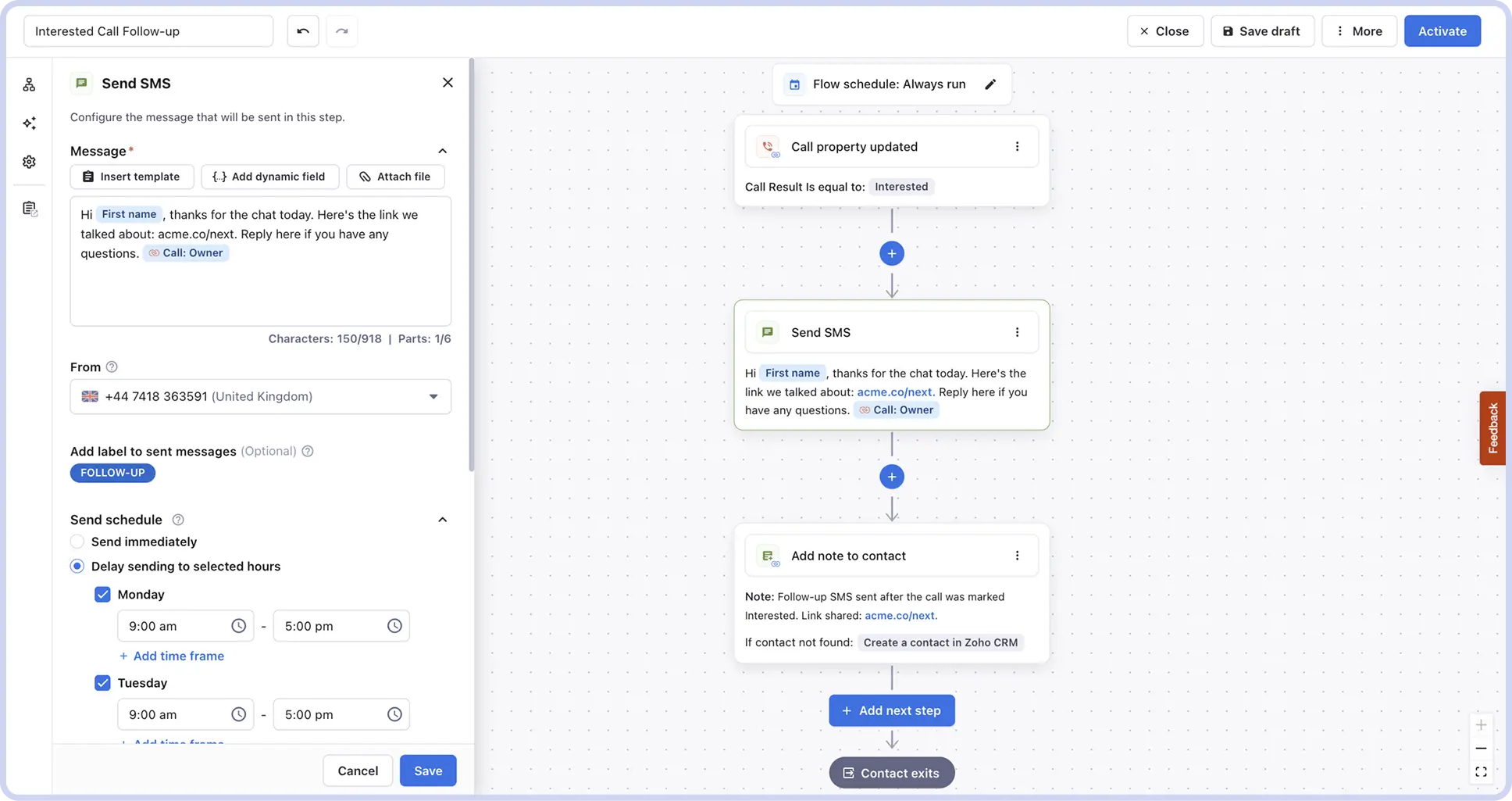
- Trigger: Call property updated, filtered by call result Interested or other relevant outcome
- Actions: Send SMS → Add note to contact
- Sample message: Hi {First name}, thanks for the chat today. Here’s the link we talked about: acme.co/next. Reply here if you have any questions. {Owner first name}
Make it better: Zoho sends no signal when something doesn’t happen, like a deal sitting in the same stage for a week. For reminders like that, start from a New trigger or a property change and add a time delay, or use the Wait until event happens step to pause until the deal moves.
Connect Zoho CRM and build your first flow
Sign up for a free trial and test the Zoho CRM integration yourself.
A few more automations to try
Once you’ve built a couple of flows, you’ll probably start noticing other small jobs you repeat every day. For example:
- Introducing new owners. When a lead or contact’s owner changes, send a short message from the new rep so the handover isn’t confusing.
- Updating Zoho from SMS replies. When someone texts a new address or a corrected name, write it back with the Update lead, Update contact, or Update account actions.
- Learning from lost deals. Sometimes deals don’t close the way we expect. Whenever a deal moves to Closed Lost, ask one short question about what influenced the decision.
- Turning replies into call-backs. When a customer replies to one of your texts, log the message with Add note to contact and create a task for the contact owner.
Before you switch your flows on
A useful automation should reach the right person, with the right message, at the right time. A few checks before you launch will help:
- Get permission to text. Only message people who have agreed to receive SMS from you. A Textmagic SMS subscribe form can capture the opt-in and add the contact to a list. If you collect consent in Zoho CRM, store it in a field, map that field when connecting, and use it as a filter for your SMS flows.
- Register your sending numbers in the US and Canada. Register your sending numbers in the US and Canada. Complete 10DLC or toll-free verification before sending any messages. Texts from unregistered numbers will not be delivered.
- Use filters generously. A flow triggered by every new deal or every lead update can quickly get noisy. Narrow it by owner, source, pipeline, stage, or any other field that is relevant to your workflow, so each text has a clear reason to be sent.
- Know the difference between leads and contacts. Leads are optional in the sync and appear with a Zoho lead tag. Once the lead is converted, it stays the same contact in Textmagic, but the tag is removed.
- Map only the fields you need. Start with fields used for personalization, filters, or flow logic. Aside from name, email, and phone, fields are set to Do not sync by default.
- Sync and automations do different jobs. Contact details flow from Zoho into Textmagic on their own. Changes made in Textmagic stay in Textmagic, unless an automation action writes them to Zoho on purpose.
- Check your Zoho edition and permissions. The free edition doesn’t include certain features, and user permissions can limit access to Tasks, Calls, or Leads.
- Keep API limits in mind. Zoho organizations share an API credit allowance across connected apps. Textmagic uses those credits sparingly, and if the limit is reached, waits and retries.
Connect Zoho CRM and build your first flow
Sign up for a free trial and test the Zoho CRM integration yourself.
Start with one flow your team will actually use
Pick the follow-up your team most often forgets, and build that one first.
- If new leads wait too long for a reply, start with the welcome text or the missed-call text-back.
- If no-shows keep eating into your calendar, set up the meeting confirmation and reminder.
- If someone spends part of every week chasing payments, try the invoice reminder, and if customers aren’t sure their support request reached anyone, start with the case acknowledgement.
Once it’s running, read the replies for a week or two and adjust the wording before you add the next flow. The Textmagic AI flow builder can put together the first version from a one-sentence description.

Related articles

Engage your customers with text message art
Text messages have been around since 1992. They’ve b...
The best SMS APIs in 2026: Evaluation guide + top 9 providers
Choosing an SMS API is easy. Choosing the right one ...

Building customer loyalty: Strategies to retain customers
In today’s highly competitive business environment, ...
How to text your Shopify customers (and stay compliant)
A practical guide to SMS consent, number registratio...

6 Proven mobile marketing techniques to boost sales with SMS
Speed and accessibility can make or break a sale. Cu...